

Configuration
Sliders are declared insideUICategories on the xrlive_UIpanel component. Set Type to Xrlive Slider and fill in the fields below.
Min and Max are not required to be symmetric. A range of
-150 to 300, or 0.5 to 2.0, is perfectly valid. The only requirement is that Max Value is greater than Min Value.Blueprint API
Standard mode
Use this wiring when Audio Reactive is disabled (default). CallFind Control by Name on the xrlive_UIpanel reference, passing the slider’s Name. Feed the Return Value into Bind Event to On Slider Value. Create a Custom Event and connect it to the Event pin.
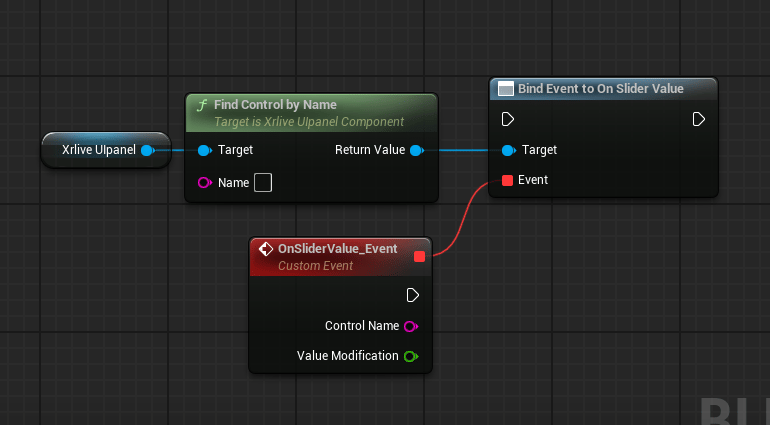
Standard slider wiring — Find Control by Name feeds Bind Event to On Slider Value
Audio Reactive mode
When Audio Reactive is enabled on the slider, useBind Event to On Beat Button Click instead. The event fires in sync with the audio beat signal rather than on operator drag.
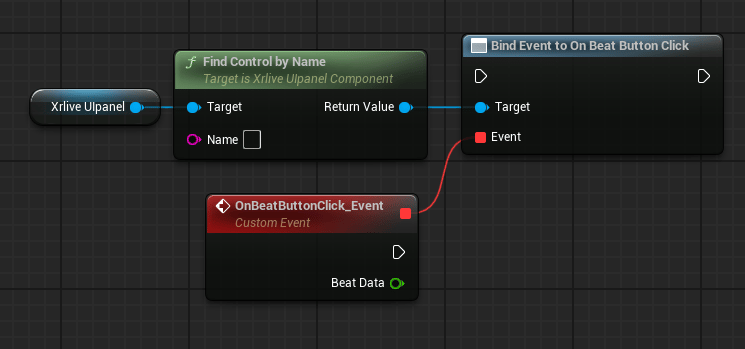
Audio-reactive slider wiring — Bind Event to On Beat Button Click replaces the standard bind node
When Audio Reactive is enabled on a slider, both bindings should be wired:
Bind Event to On Slider Value handles manual operator input, and Bind Event to On Beat Button Click handles the audio beat signal. The two events fire from independent sources and do not interfere with each other.