

System requirements
Before installing, confirm your machine meets the minimum requirements. xRLive uses Unreal Engine 5 rendering — a dedicated GPU is strongly recommended for smooth stage output.Download the installer
- Log in to dashboard.xrlive.app.
- Go to Home in the left sidebar.
- In Windows section, click Download xRLive — this downloads the latest
.exeinstaller.
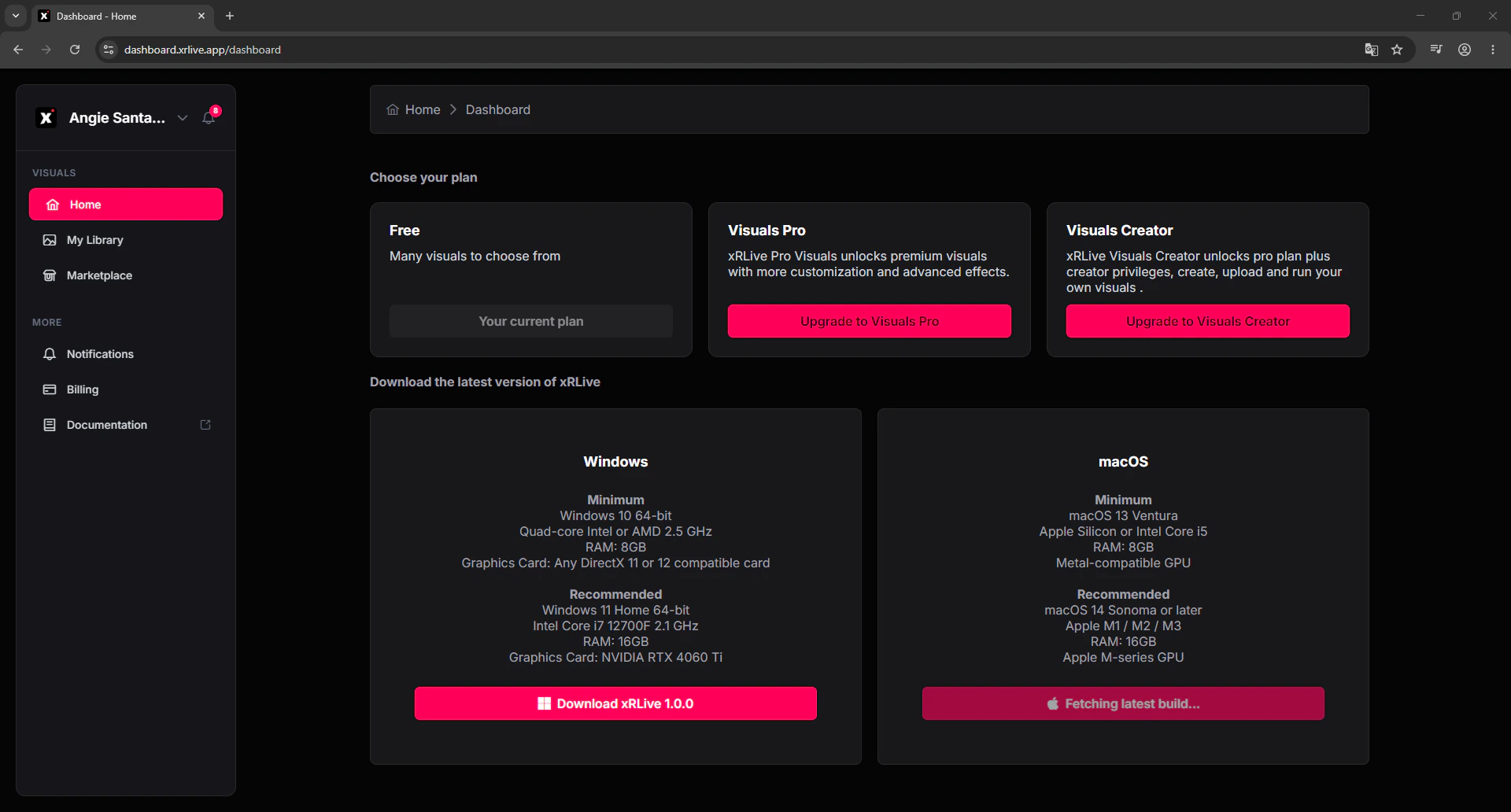
The Downloads section in the xRLive dashboard
Run the installer
- Open the downloaded
.exefile. - If Windows shows a SmartScreen warning, click More info → Run anyway. xRLive is a signed application — the warning appears because it’s not yet in Microsoft’s catalog.
- Follow the installer steps. xRLive installs to
C:\Program Files\xRLiveby default. - A desktop shortcut and Start Menu entry are created automatically.
First launch
- Open xRLive from the Start Menu or desktop shortcut.
- Sign in with your xRLive account credentials or click Continue with Google.
- The launcher loads and your visual library is ready.
Updates
xRLive checks for updates on startup. When a new version is available, a prompt appears — click Update to install it. You can also check manually via Settings → Check for Updates.Updates are delivered as patches, not full reinstalls. Most updates download and apply in under a minute.