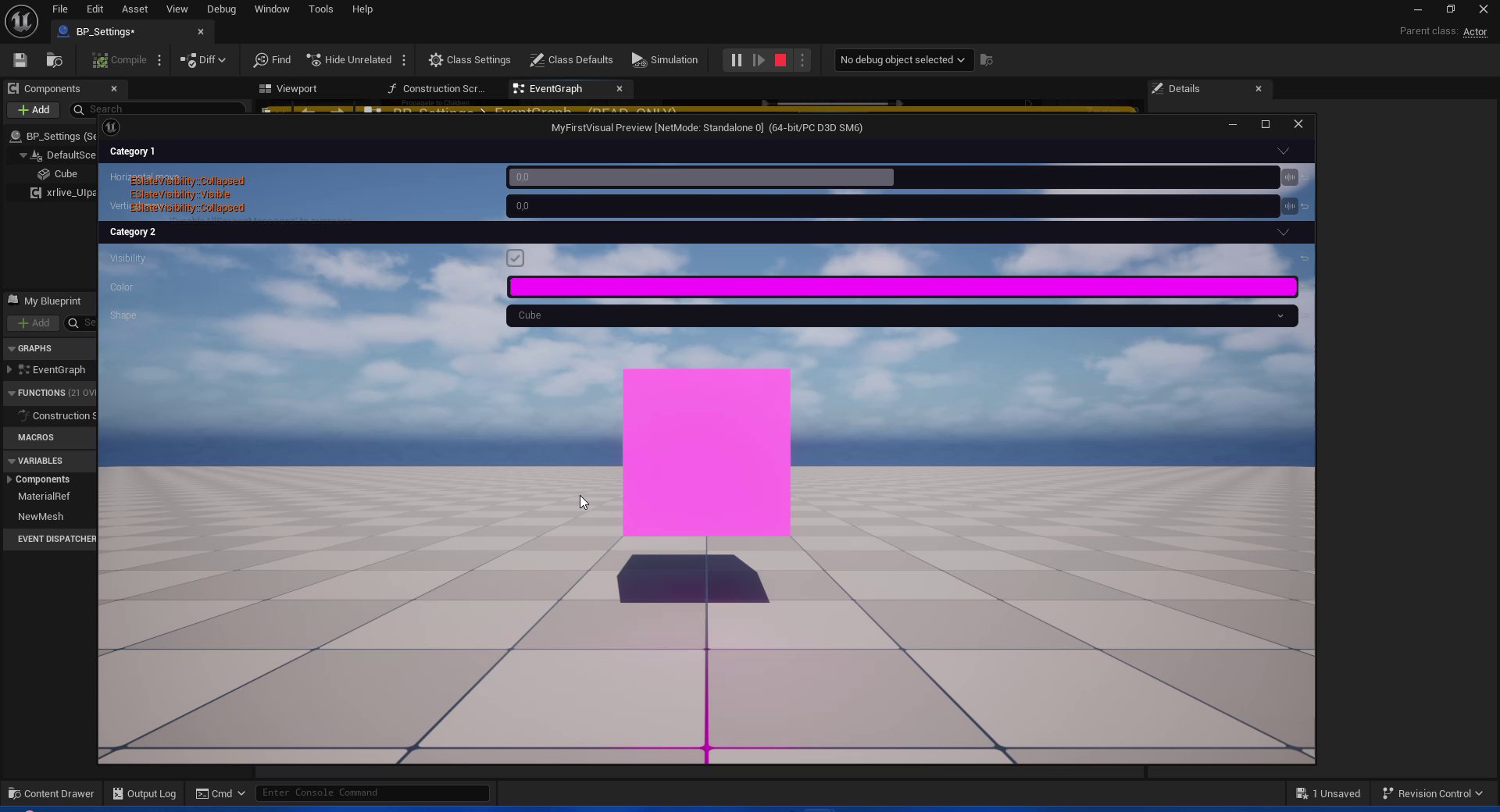
Run the visual inside the Unreal Engine editor and use a key toggle to access the operator controls
With all controls wired you can run the visual directly inside the Unreal Engine editor to verify everything works before packaging.
The behavior described on this page is specific to editor testing. When the visual runs inside xRLive, the operator dashboard and the game window are two separate windows in the same process — the controls are always accessible and this overlap does not occur.
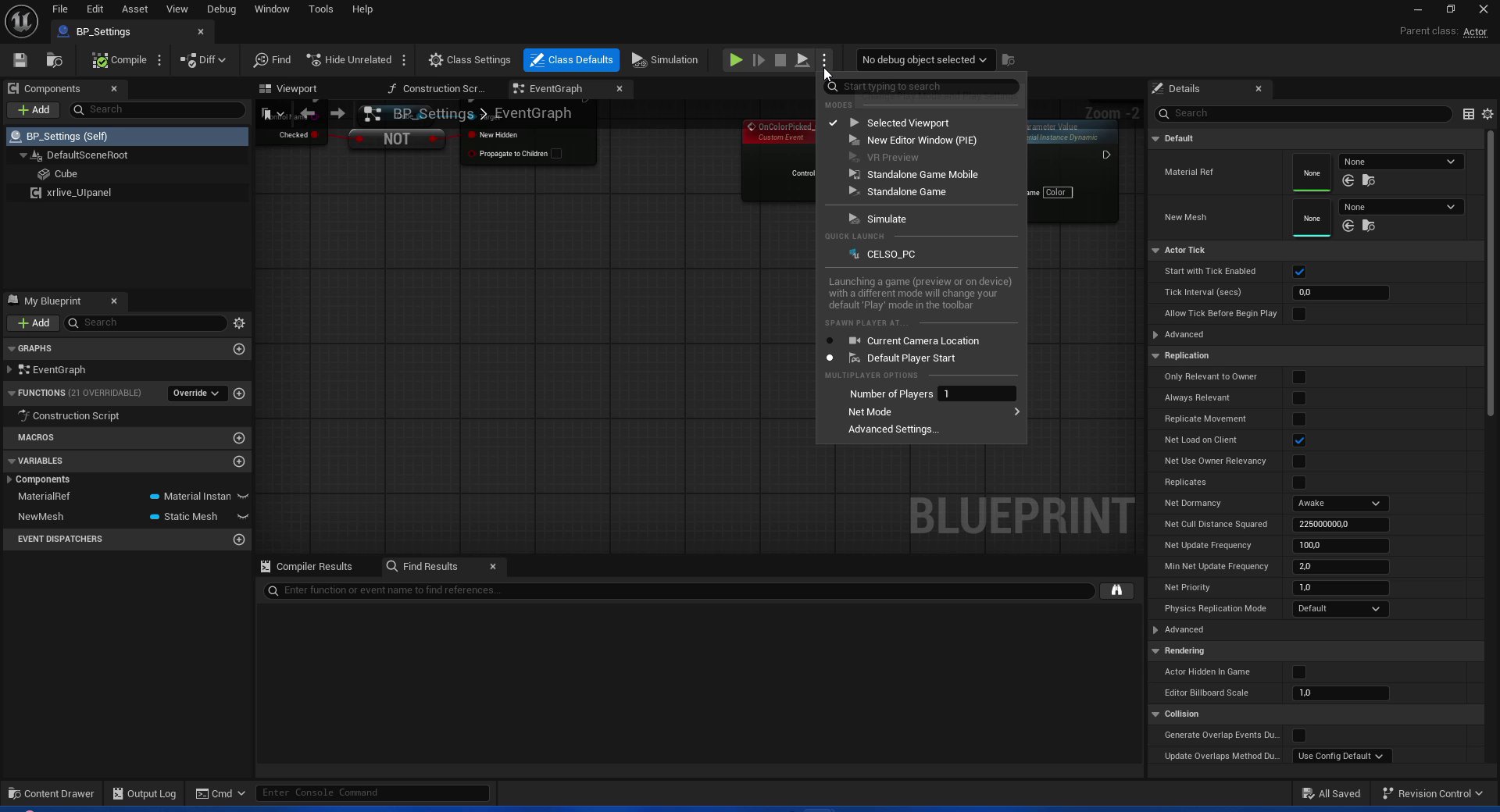
By default, Unreal Engine runs PIE (Play In Editor) embedded inside the editor viewport. For testing a visual it is more practical to open a New Editor Window — a standalone window that floats freely so you can keep the EventGraph and the preview visible side by side.Click the small arrow next to the Play button in the toolbar and select New Editor Window (PIE).
Play button dropdown — select New Editor Window (PIE) to run the visual in a floating window
The preview window opens as a separate floating window. You can resize and reposition it freely while keeping BP_Settings open in the editor behind it.
Unreal remembers the last Play mode used. After selecting New Editor Window (PIE) once, pressing the Play button directly will reuse it on subsequent runs.
Why the controls are not clickable on the first run
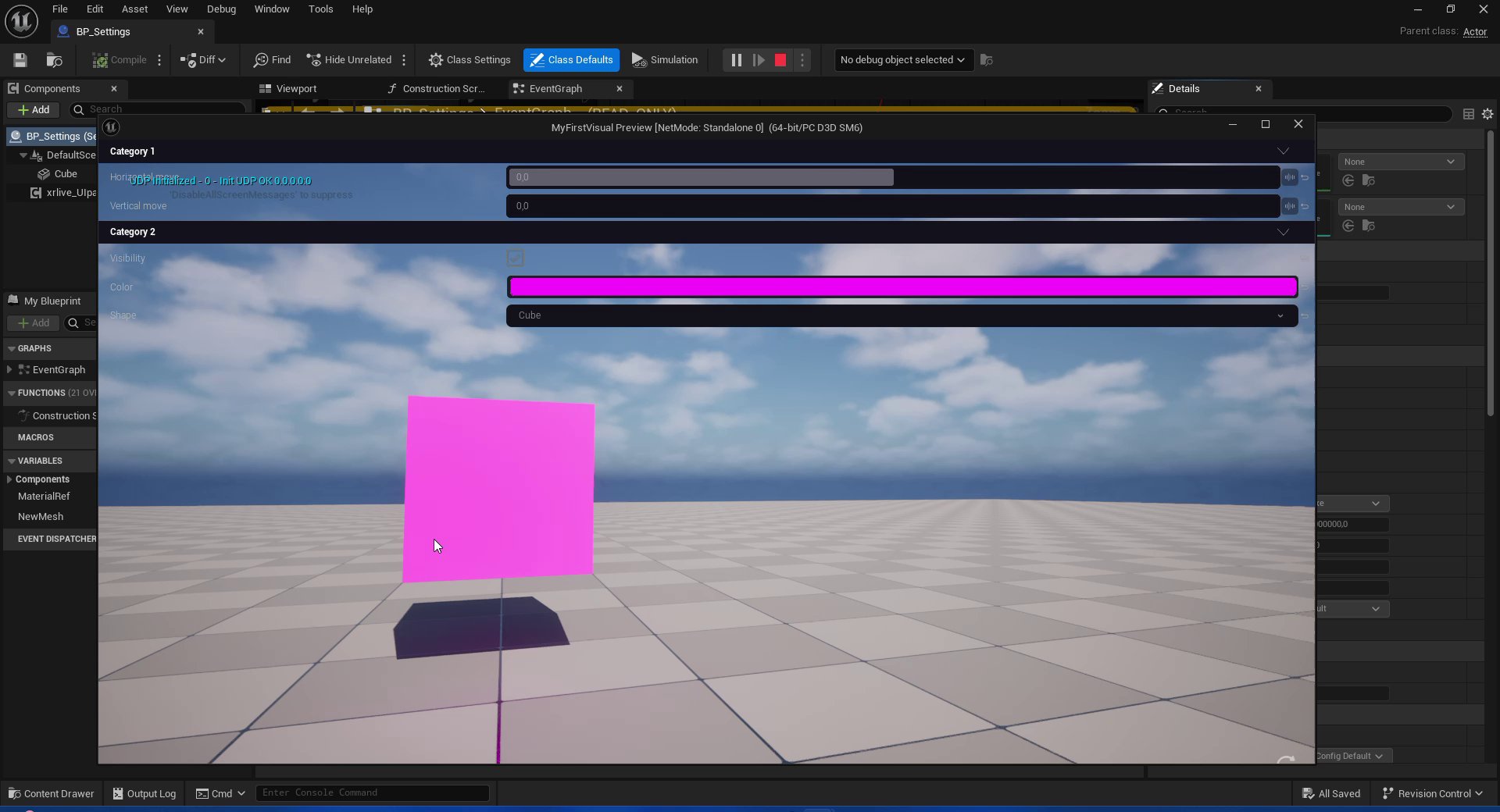
Press Play (or Alt + P) to launch the preview window. The operator panel appears with all the controls from UICategories, but clicking any slider, checkbox, or dropdown has no effect — the camera moves instead.
First run — operator panel visible but controls are not reachable; the Viewport widget sits on top and captures all mouse input
This happens because the xRLive_Viewport widget and the xRLive_CustomPanel widget both render inside the same game window during editor playback. The Viewport widget is rendered on top and captures mouse input for camera movement, making the operator controls underneath unreachable.
Add a key toggle to the Viewport widget visibility
The fix is a key event in BP_Settings that toggles the Viewport widget’s visibility at runtime. When the widget is Collapsed it is not rendered and does not capture input, giving full access to the operator controls. Pressing the key again restores it.Open BP_Settings and go to the EventGraph.
1
Enable Auto Receive Input
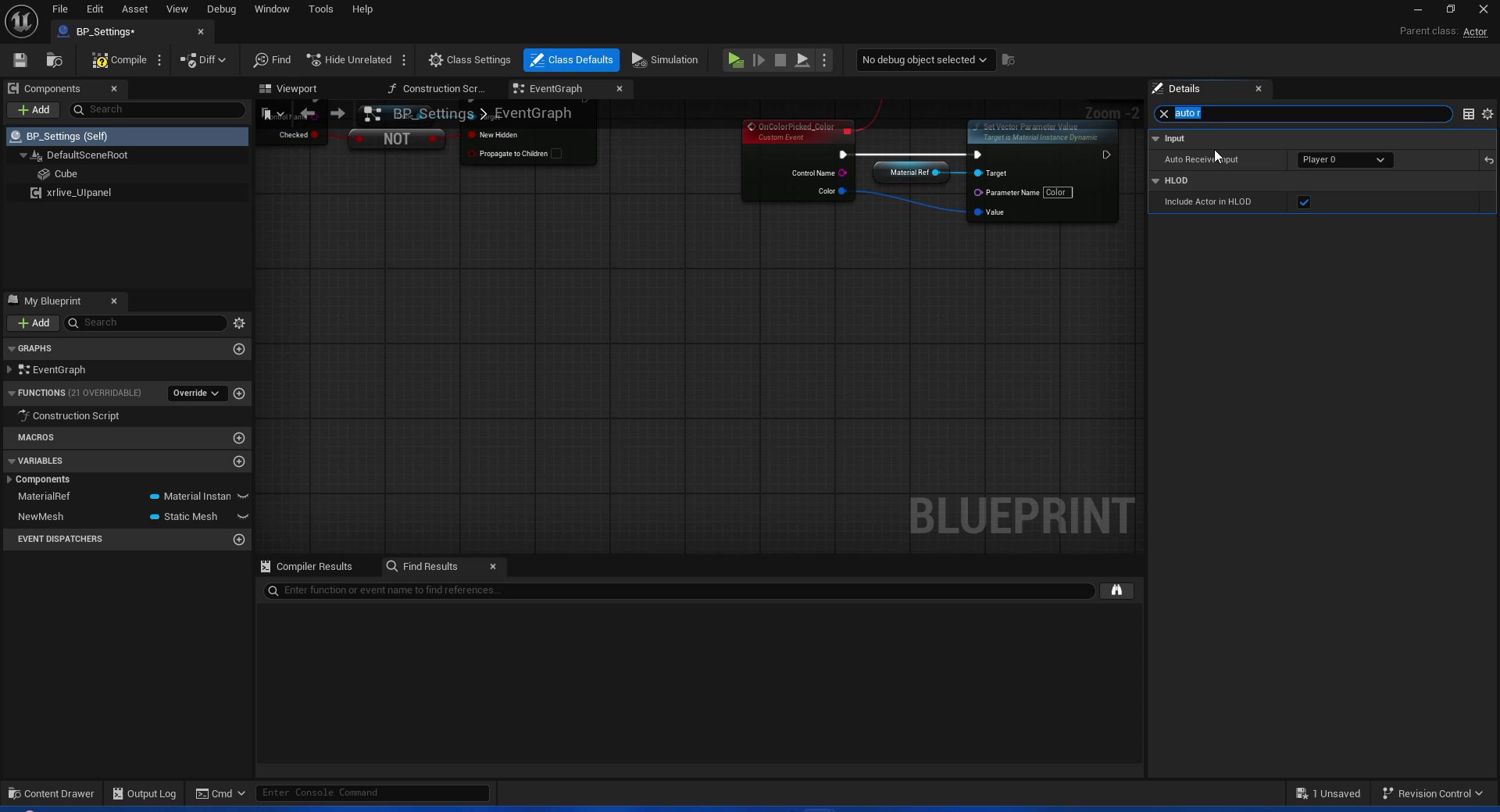
Keyboard events will not fire unless the Blueprint is configured to receive player input. In the Components panel, select BP_Settings (Self) — the root entry at the top of the list. In the Details panel that appears on the right, type auto in the search box to filter the properties. Under the Input section you will see Auto Receive Input set to Disabled. Change it to Player 0.
Auto Receive Input set to Player 0 on BP_Settings (Self) — required for keyboard events to fire
2
Add a Keyboard Event
Right-click on an empty area of the EventGraph and search for Keyboard Events. Choose a key that is easy to reach during testing — this tutorial uses V. Connect the Pressed output pin to the next node.
3
Add a Flip Flop node
Drag off the Pressed pin and search for Flip Flop. This node alternates between two execution outputs (A and B) on each successive call — first press fires A, second press fires B, and so on.
4
Get the Viewport widget reference
Drag the xrlive_UIpanel component from the Components panel into the EventGraph. From its output pin, search for Get Viewport Widget and select it. This returns a reference to the xRLive_Viewport widget instance that is currently rendered.
5
Wire Set Visibility for each branch
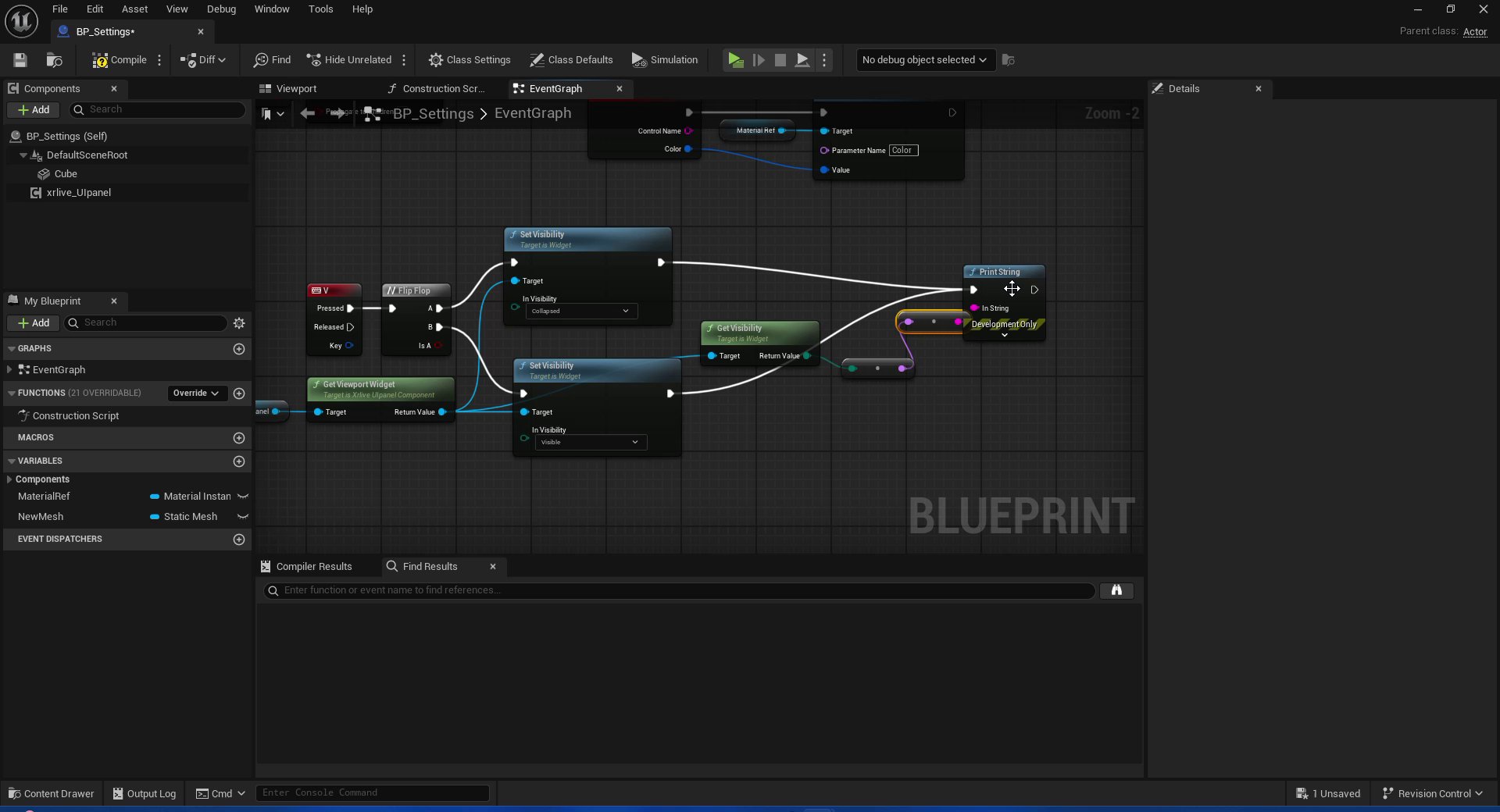
From the A output of Flip Flop, add Set Visibility and set In Visibility to Collapsed. Connect the Return Value of Get Viewport Widget to its Target pin.From the B output of Flip Flop, add a second Set Visibility and set In Visibility to Visible. Connect the same Get Viewport WidgetReturn Value to its Target pin.
Complete toggle chain — V key → Flip Flop → Set Visibility (Collapsed on A, Visible on B) targeting the Viewport widget from Get Viewport Widget
The key event approach is for convenience during editor testing only and does not need to be removed before packaging — it has no effect at runtime in xRLive. An alternative is to clear the Viewport widget reference directly in the xrlive_UIpanelDetails panel, but this requires you to reassign it manually before the next test run. The key toggle is safer.