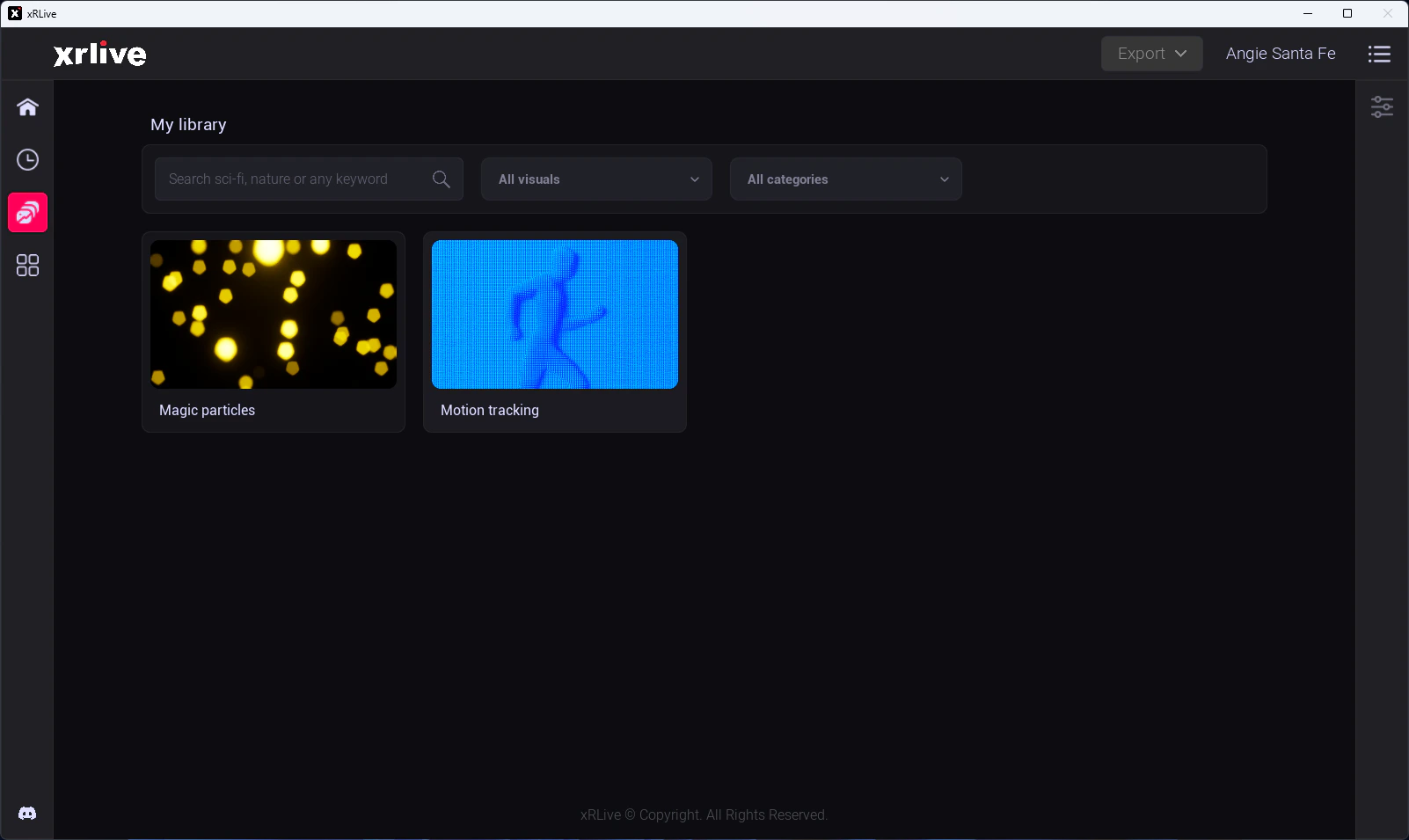
Make sure the visual is in your library. If you haven’t downloaded it yet, go to the Marketplace in the dashboard, find the visual, and click Get or Buy. It will appear in your library automatically.
To close the current visual, click Close Visual in the operator dashboard. The game window closes, all operator controls clear, and the launcher returns to the library view.All actors, effects, and material parameter changes made by the visual are cleaned up automatically on close.
Close the current visual first, then open the next one. xRLive fully unloads the previous visual’s assets before mounting the new one — this ensures no content from one visual bleeds into another.
Do not force-quit the game window while a visual is running. Use Close Visual in the operator dashboard to ensure a clean shutdown. Force-quitting may leave orphaned processes on some platforms.