

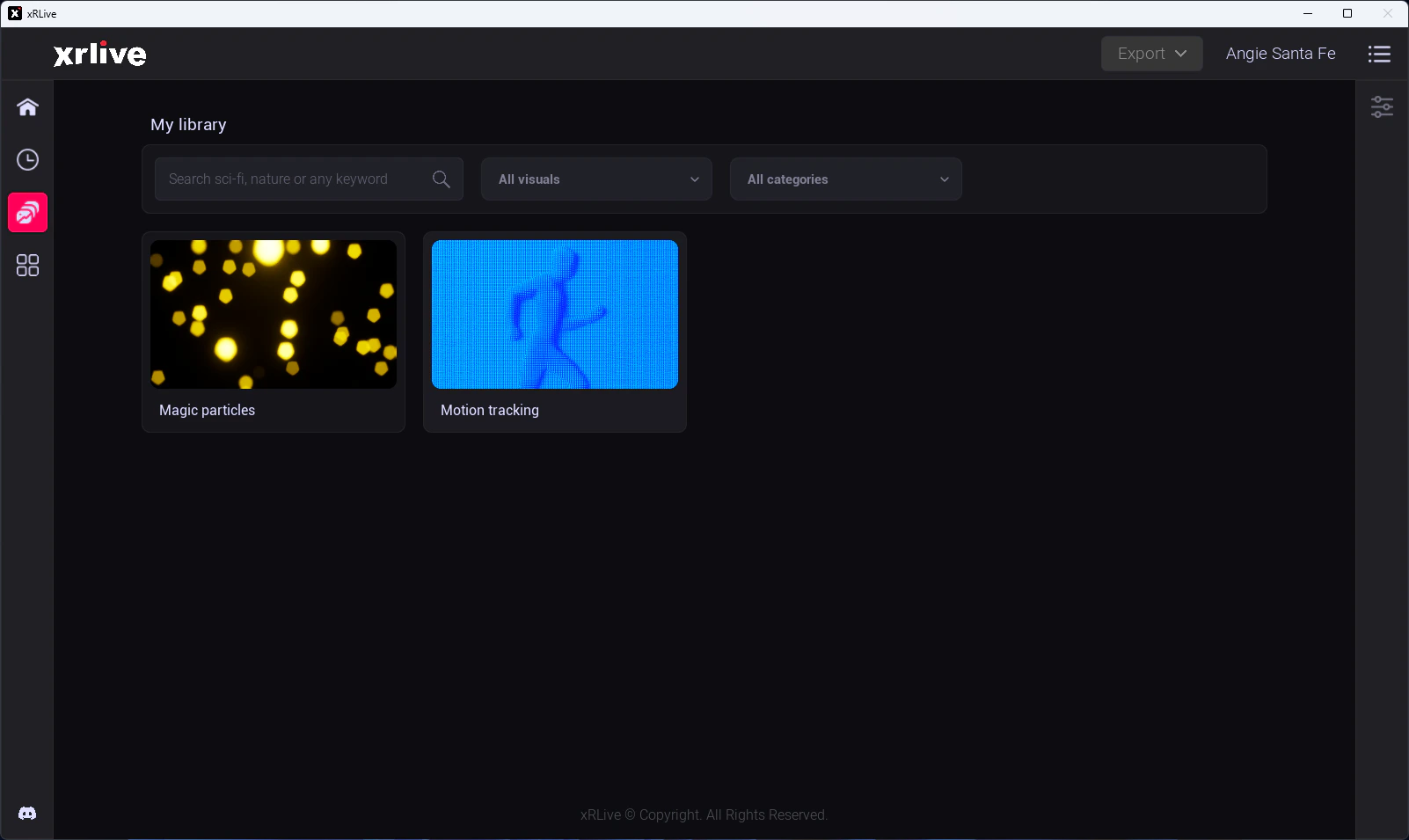
The My library screen in the xRLive Launcher
Search
Use the search bar at the top to find a visual by name or keyword. The grid filters to matching visuals as you type.Filters
Two dropdowns narrow what the grid shows:- Visual scope (All visuals) — switch between:
- All visuals — every visual in your library.
- My visuals — only the visuals you created.
- Categories (All categories) — a list of the tags assigned to a visual when it’s first uploaded. Filter by category to narrow your search.
Opening a visual
Click any card to open that visual directly — no separate confirmation step. The game window launches and the operator dashboard loads with the visual’s controls. → See Open a Visual for what happens on first run, including the automatic download.Managing visuals (such as updates or removal) isn’t done from My library — this screen is for browsing and opening the visuals you own.