

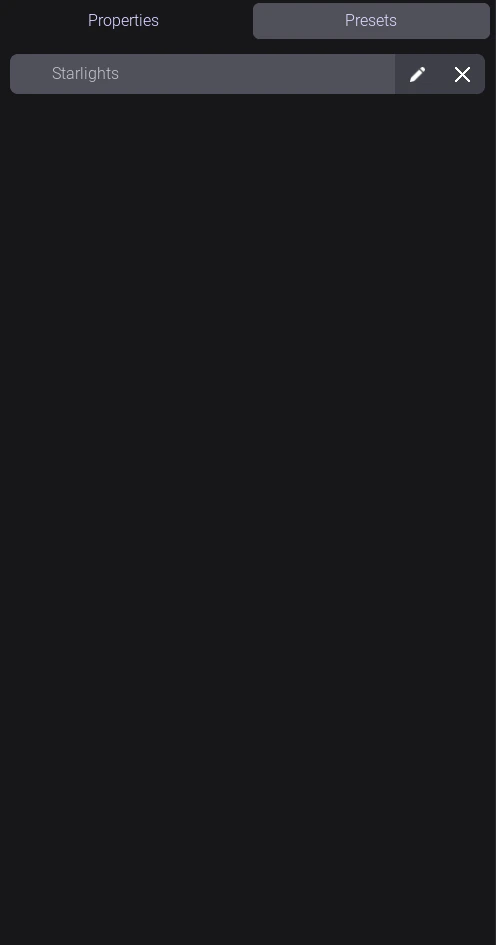
The preset bar showing saved presets for a visual
Saving a preset
- Set your controls to the state you want to save — adjust sliders, pick colors, set dropdowns.
- Click Save Preset (or the + icon in the preset bar).
- Enter a name for the preset (e.g. “Intro”, “Drop”, “Outro”) and confirm.
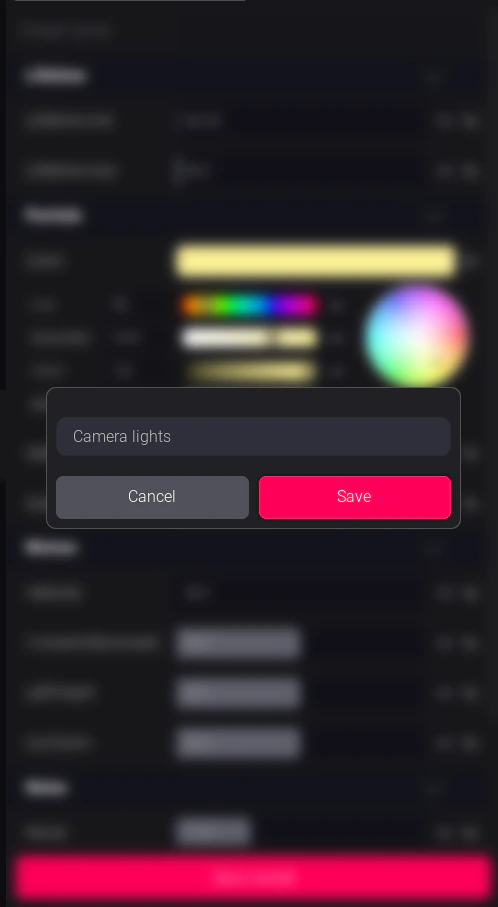
Saving a new preset with a custom name
Loading a preset
Click any preset in the preset bar. All control values instantly update to the saved state.Preset recall is immediate — there is no crossfade or transition unless the visual creator has built one into the visual itself.
Renaming and deleting presets
Right-click a preset in the bar for options:- Rename — change the display name
- Overwrite — update the preset with the current control values
- Delete — remove the preset permanently
Preset storage
Presets are stored locally as JSON files in:
Presets are per-visual — switching to a different visual shows that visual’s presets only.
Triggering presets via OSC
Presets can be triggered remotely from a lighting console, media server, or any OSC-capable device. This is useful for hands-free operation during complex shows. → See OSC Integration for the command format and setup.Preset tips for live shows
- Name presets for cues, not settings. “Verse”, “Chorus”, “Drop”, “Blackout” are more useful than “Blue slow” during a fast-paced show.
- Build your full preset list before sound check — don’t save presets live during a performance.
- Test every preset before the show. Load each one and confirm the game window reflects the expected look.