

The QR code is generated for you
When you start an audience-enabled experience, the visual builds its QR code and displays it on the game window — usually next to the title and a countdown. You don’t create it, paste it, or point it anywhere; the visual handles all of that.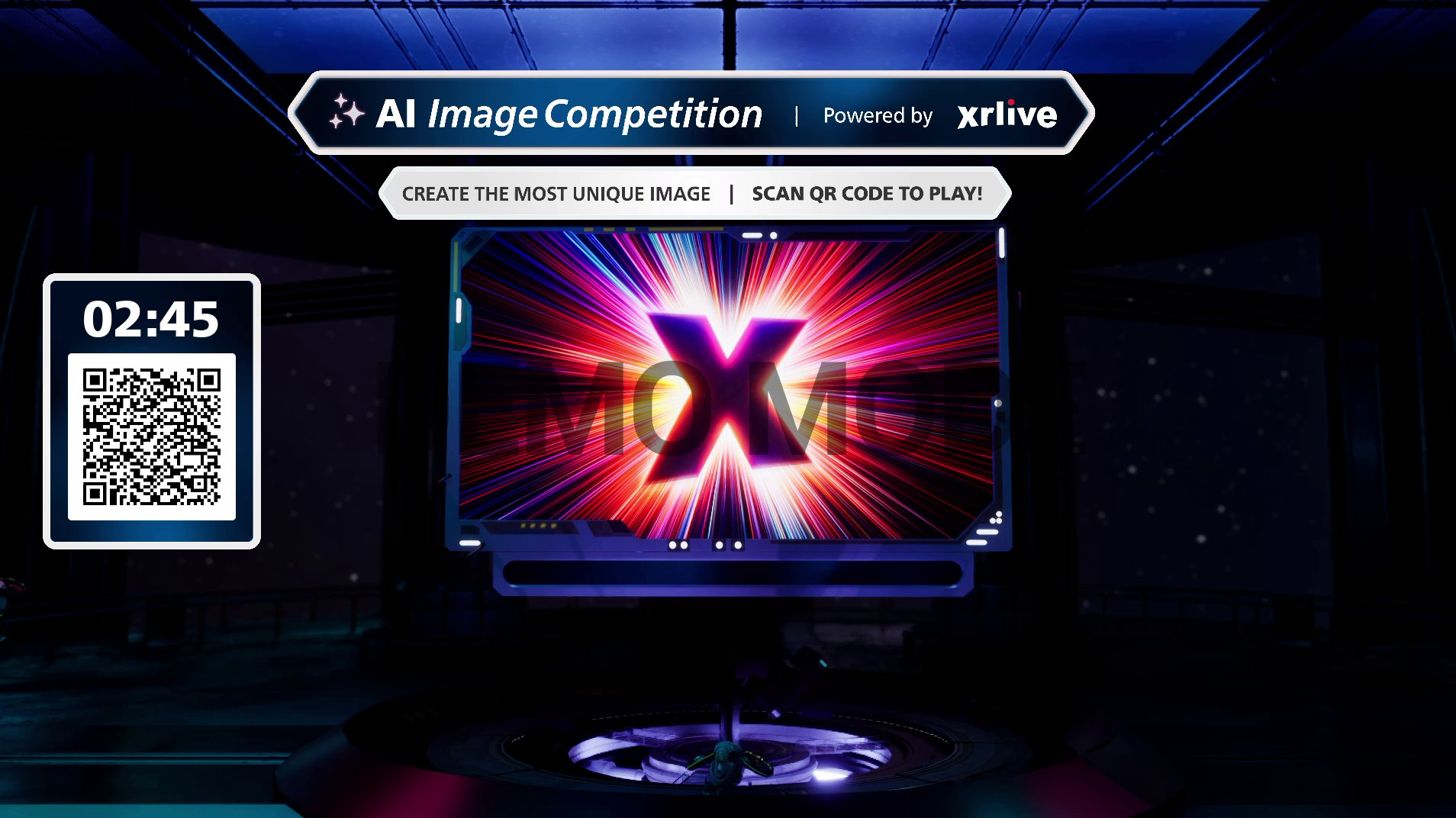
The QR code shown on the game window when an audience experience starts
Because the code is built into the running experience, there’s nothing to set up beforehand. Start the experience and the QR code is ready to scan.
How the audience joins
1
Scan the code
Each person points their phone camera at the QR code on the game window. Most phones recognize it automatically and offer to open the link.
2
Open the web page
Tapping the link opens the experience’s audience page in the phone’s browser — no app to download.
3
Get set up (if asked)
Depending on the experience, the audience either enters a few quick details or jumps straight in. See the variations below.
4
Take part
Once they’re in, the audience can do whatever the visual offers — react, vote, or contribute — and it shows up live on stage.
Onboarding varies by experience
How much an audience member does before they’re “in” depends on the visual.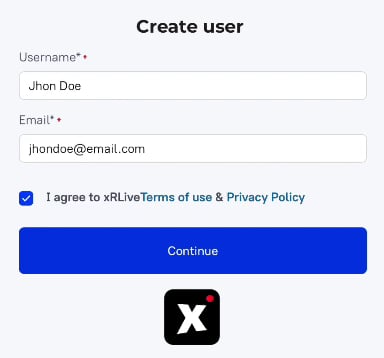
Some experiences ask for a quick profile before joining
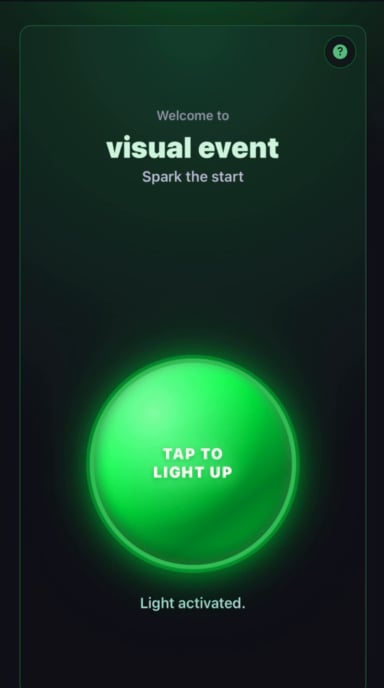
Others drop the audience straight into the action
- Quick profile — experiences like the AI Image Contest ask for a name and email and to agree to the terms, so entries can be attributed to a person.
- Straight in — experiences like Light it up skip the form and put the audience right on the action screen.
Tips for a smooth join
- Make sure the venue has phone signal or Wi-Fi — the audience page loads over the internet.
- The same code works for everyone, so the whole room can scan it at the same time.
Where to go next
Interactions
What the audience can actually do once they’re in — reactions, votes, polls, and more.
Game shows
See the join flow in context inside a full competitive experience.