

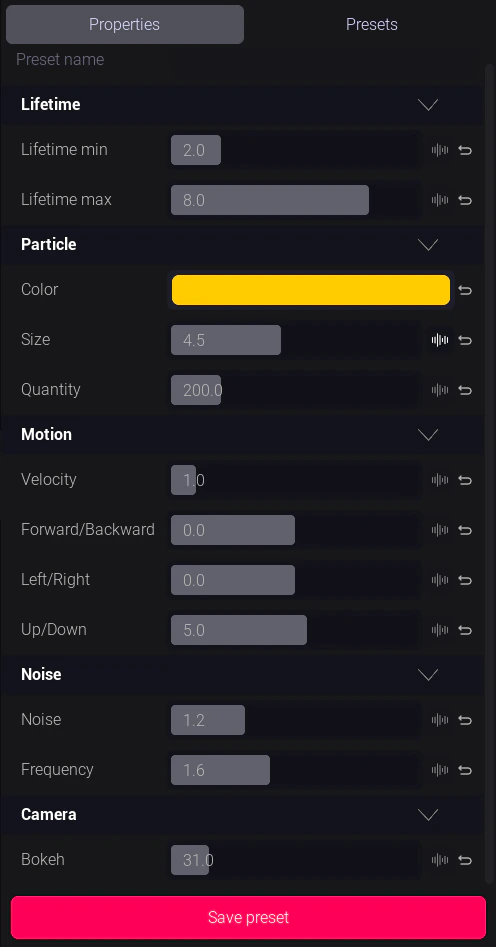
The operator control panel with various control types
Control types
Slider
A float value you drag left or right between a minimum and maximum defined by the creator. Common uses: Intensity, speed, blur amount, scale, opacity, effect strength. Some sliders are audio-reactive — they automatically respond to beat data from your audio feed and you don’t need to move them manually. A wave icon indicates audio reactivity is active.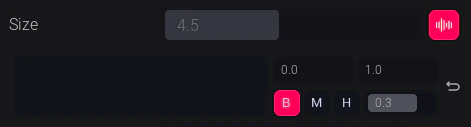
A slider in normal mode (left) and audio-reactive mode (right)
Button
A trigger that fires a one-shot event in the visual when clicked. Common uses: Trigger a burst, start an animation, advance a state, fire a confetti particle effect. Buttons are instant — no value to hold, just a press. Some buttons are momentary (fire on press, release on let go); most are single-click triggers.Checkbox
A boolean toggle — on or off. Common uses: Enable/disable a visual layer, show/hide an element, toggle a loop.Dropdown
A list of named options. Click to expand and select one. Common uses: Switch between scenes, change a theme, select a color palette, pick a font.Color Picker
An HSV color selector. Drag the hue ring and the saturation/value square to pick a color. Common uses: Change the primary color of a visual element, set a brand color live. Like sliders, color pickers can be audio-reactive — individual H, S, or V channels can be wired to respond to beat data.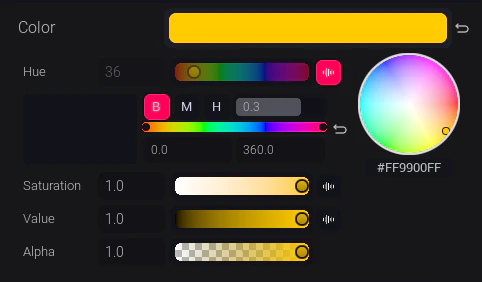
The xRLive color picker
Text Input
A free-text field. Type and confirm to push the value into the visual. Common uses: Live score display, player names, custom messages on screen.Tips for live use
- Practice your preset workflow before a show — saving key control states as presets and recalling them is much faster than adjusting controls live. See Presets.
- Audio-reactive controls don’t need to be touched during the show — focus your attention on non-reactive controls.
- If a control doesn’t respond, check that the visual is fully loaded (game window is rendering) and try refreshing the control panel from the visual settings.