

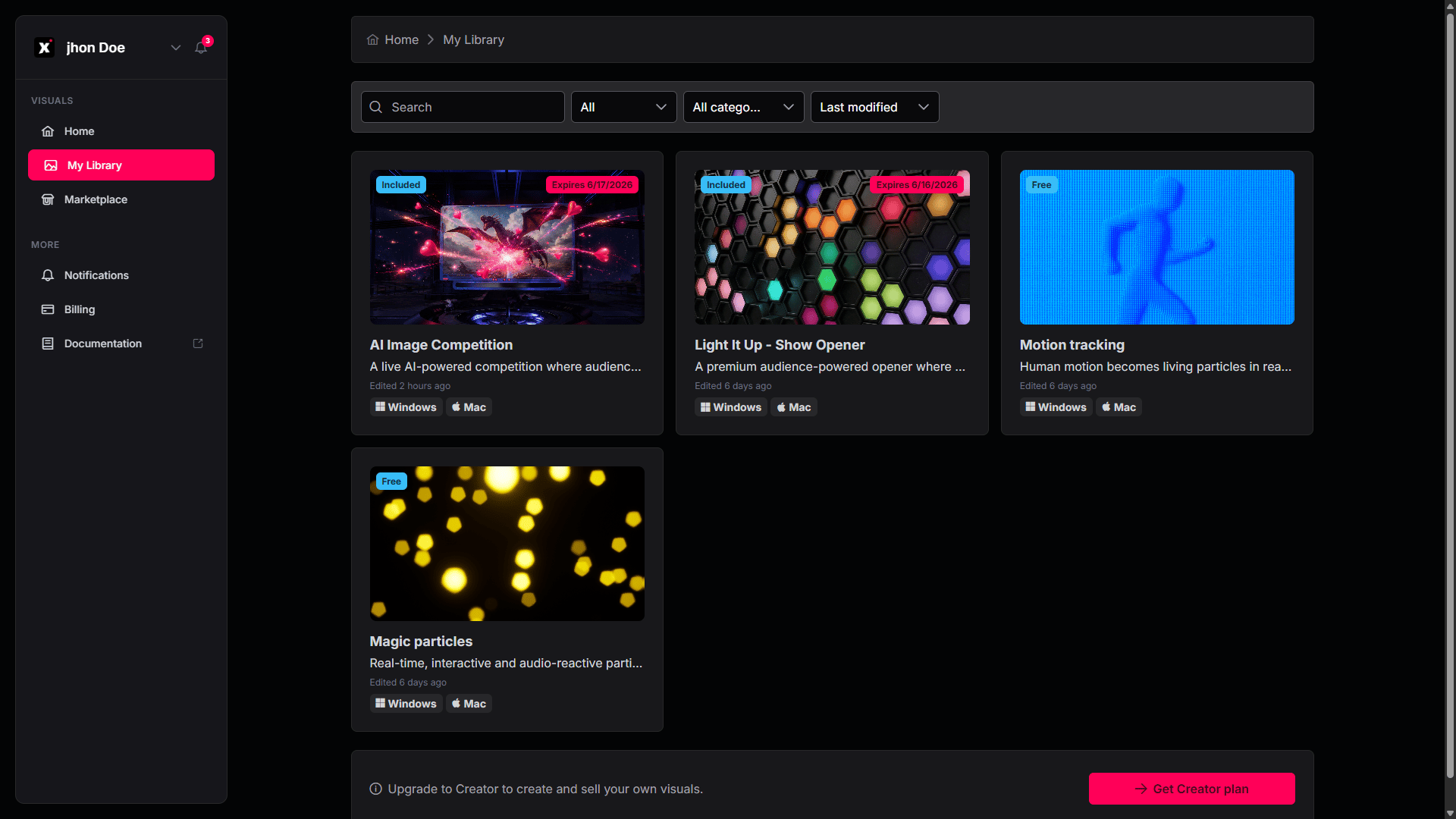
The My Library page in the xRLive dashboard
Your visuals
Each visual you own is shown as a card with its thumbnail, name, a short description, when it was last edited, and the platforms it runs on (Windows and/or Mac). A badge on each card shows its status:- Purchased — a visual you’ve bought.
- Expires [date] — a time-limited purchase, with the date your access ends.
- Free — a free visual you’ve added to your library.
Finding a visual
The controls at the top of the page help you locate a visual quickly:- Search — click the search box and type a name or keyword; the grid filters as you type.
- Category — use the All categories dropdown to show only visuals in a chosen category.
- Sort — use the sort dropdown (for example, Last modified) to change the order of the grid.
Using your visuals
There’s nothing to download from this page — My Library is where you keep track of what you own. To run a visual, open the xRLive Launcher: your library there refreshes automatically and your visuals are ready to open. → See Visual Library for browsing and opening visuals inside the Launcher.Become a creator
At the bottom of the page, the Upgrade to Creator banner lets you move to the Creator plan so you can create, upload, and sell your own visuals. Click Get Creator plan to upgrade.Plans & Subscriptions
Compare the Free, PRO, and CREATOR plans.