

If you haven’t set up Stripe yet, complete Become Contributor first. That onboarding flow connects your account to Stripe and configures how you receive payouts.
Open Stripe Express
Click Payouts in the dashboard sidebar. xRLive opens a new tab and redirects you to your Stripe Express dashboard — the external portal where Stripe handles your earnings and bank transfers.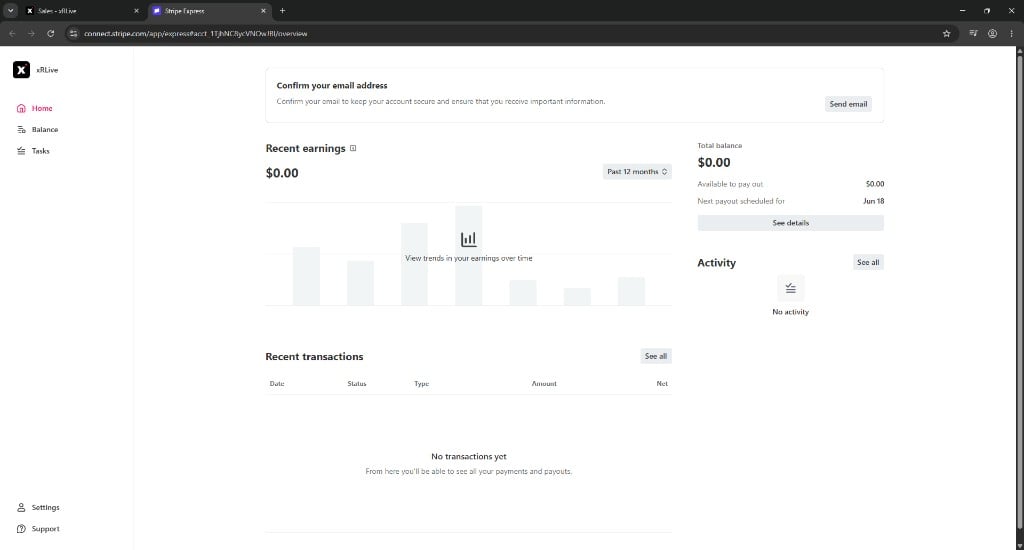
Stripe Express — manage balances, earnings, and payout schedules
What you can do in Stripe Express
Once the Stripe Express tab opens, you can:- View your balance — see your total balance, what’s available to pay out, and when your next payout is scheduled.
- Track earnings — review the Recent earnings chart filtered by period (for example, past 12 months).
- Browse transactions — open the Transactions table to see individual payments, fees, and payout entries with date, status, type, amount, and net columns.
- Confirm your email — if prompted, verify your email address to keep your account secure.
- Access reports — use the Reports section in the sidebar for detailed financial summaries.
Your financial information stays with Stripe — xRLive never sees or stores your bank or card details. All payout management happens inside Stripe Express.
Where to go next
Sales
Track per-visual revenue and sales performance in the xRLive dashboard.
Become Contributor
Set up Stripe Connect if you haven’t onboarded yet.