

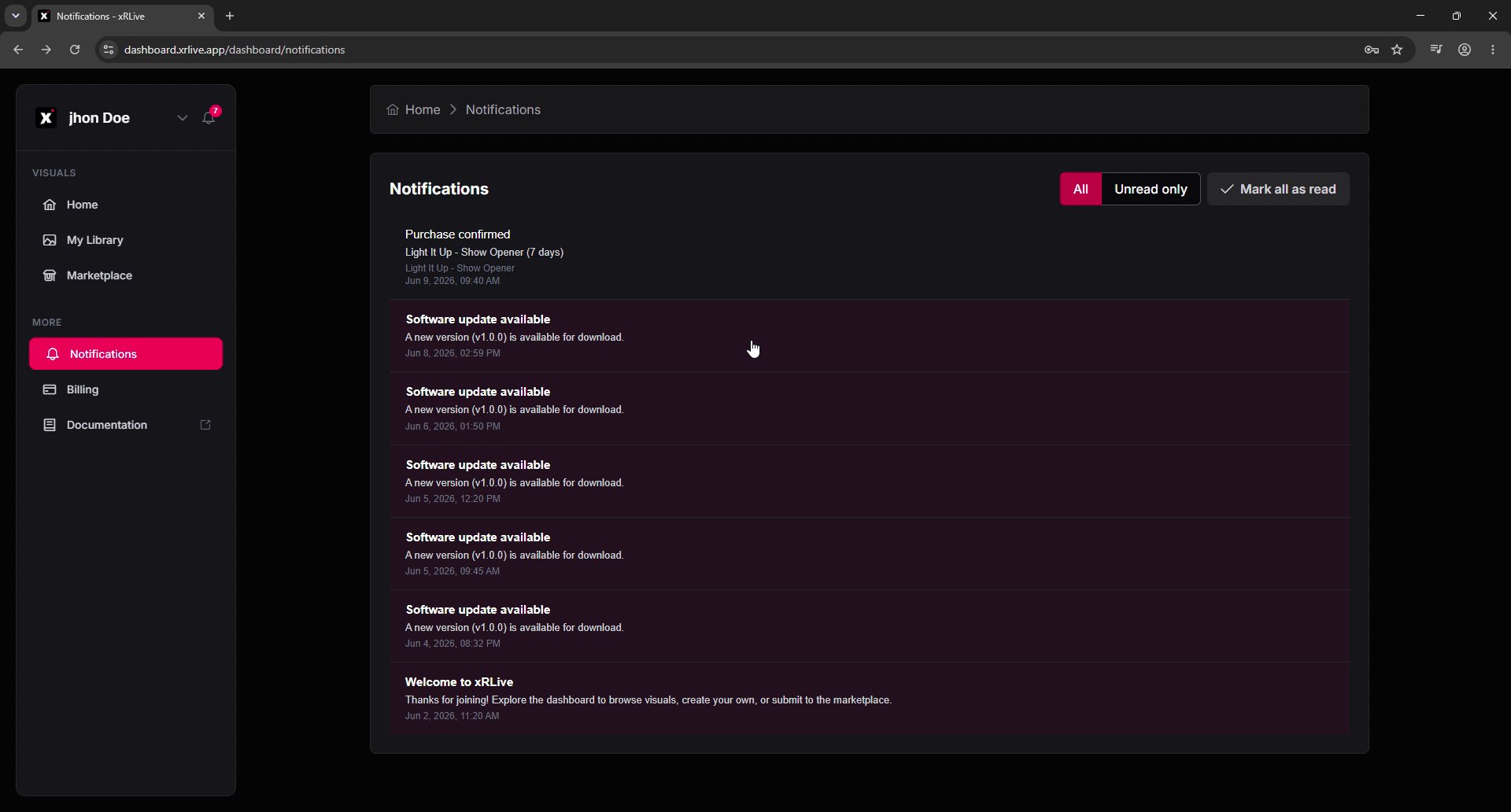
The Notifications page in the xRLive dashboard
Opening notifications
There are two ways to reach your notifications:- Bell icon — click the bell in the top-left corner to open a quick dropdown with your most recent notifications. A red badge shows how many are unread.
- Sidebar — click Notifications in the sidebar to open the full page.
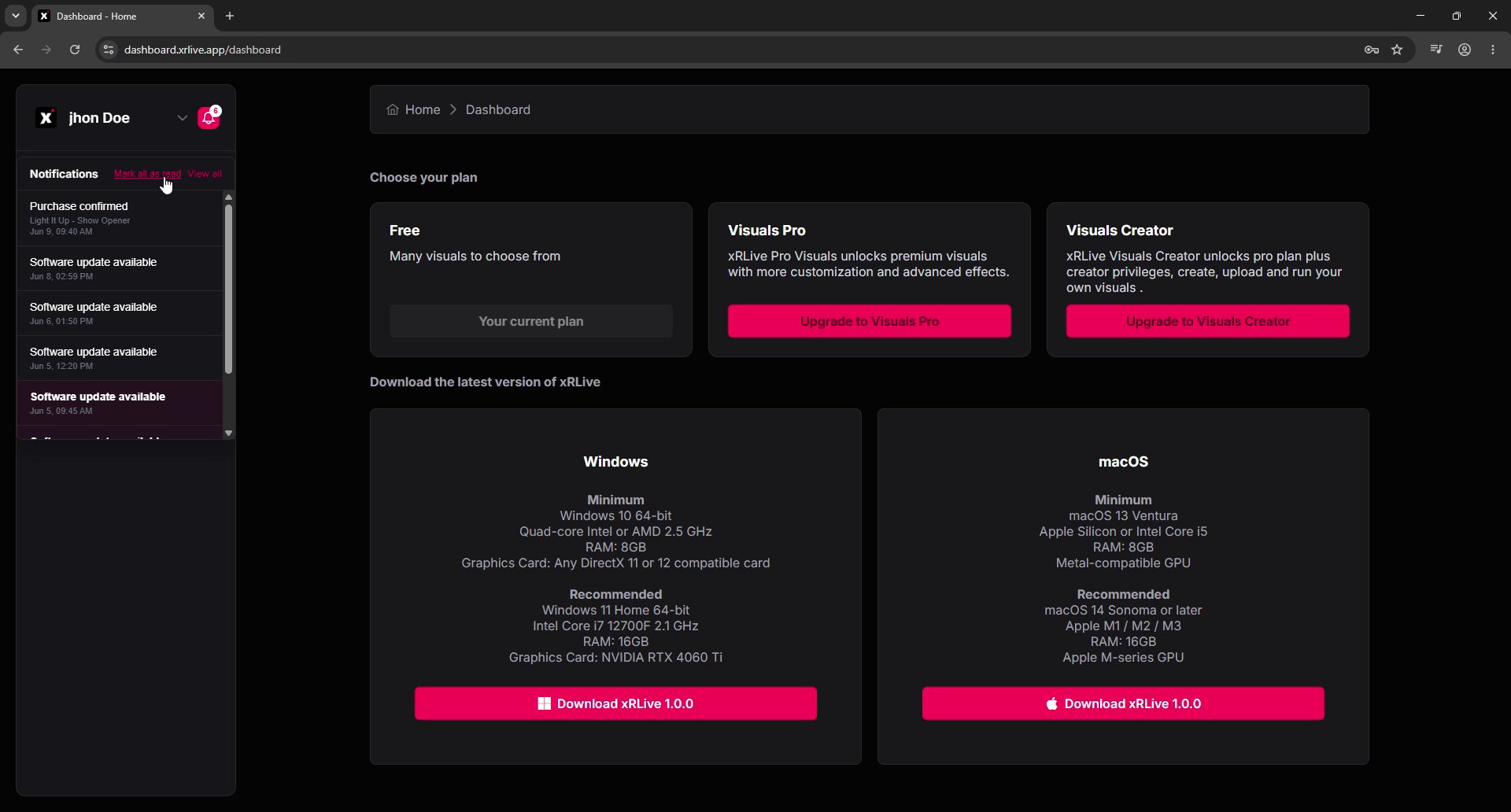
The notifications dropdown from the bell icon
Reading the list
Each notification shows a title, a short description, and a timestamp. Common types include:- Purchase confirmed — confirms a visual you bought or rented (for example, Light It Up - Show Opener (7 days)).
- Software update available — a new version of xRLive is ready to download.
- Welcome to xRLive — the first message on a new account.
Filtering
Use the controls in the top-right to filter the list:- All — shows every notification.
- Unread only — shows just the notifications you haven’t read yet.
Opening a notification
Click any notification to open its detail view. It shows the full message, the timestamp, and an action button when one applies — for example, a Go to Dashboard button on a software update. Use ← Back to notifications to return to the list.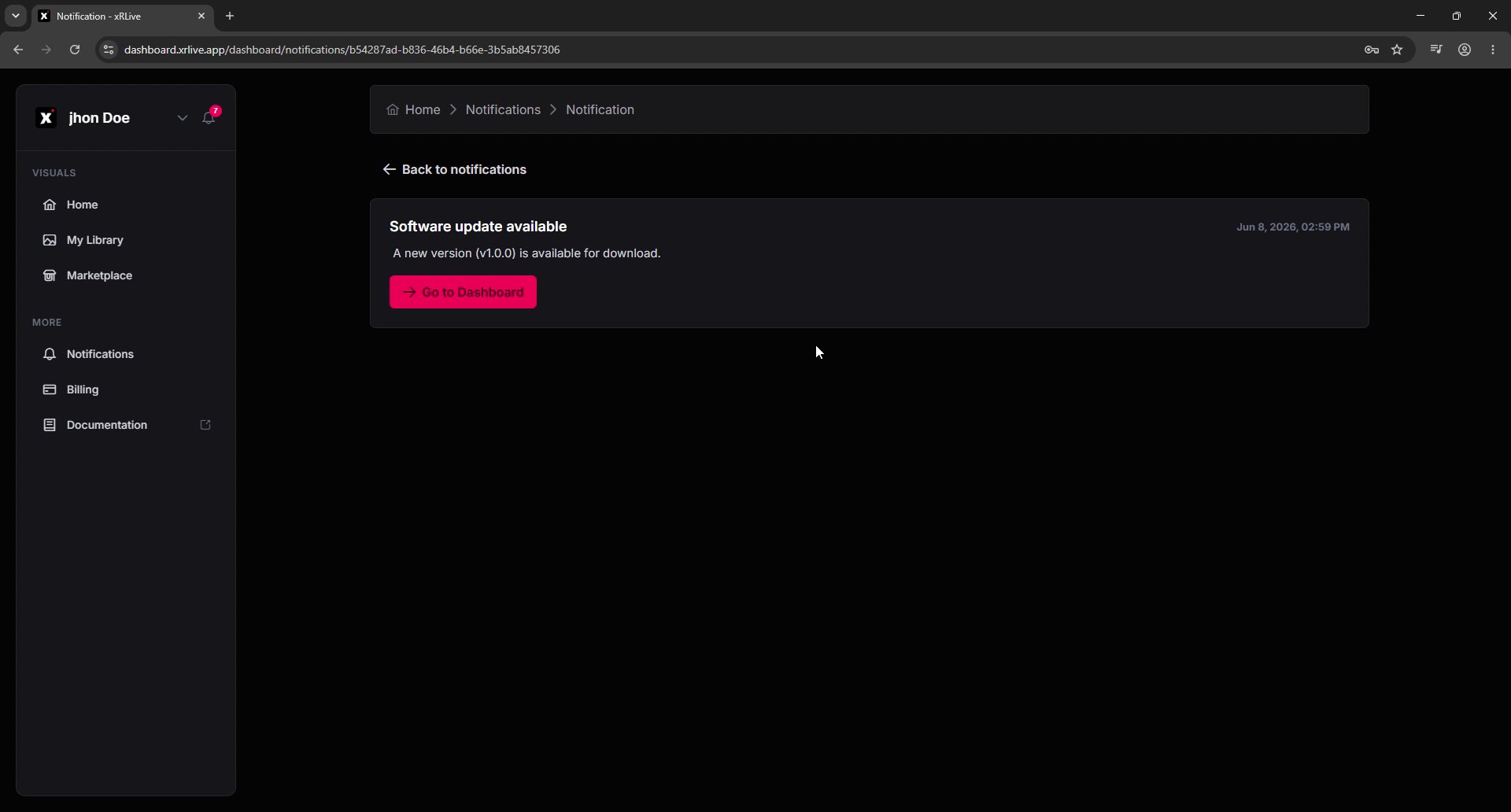
A single notification opened in detail view