

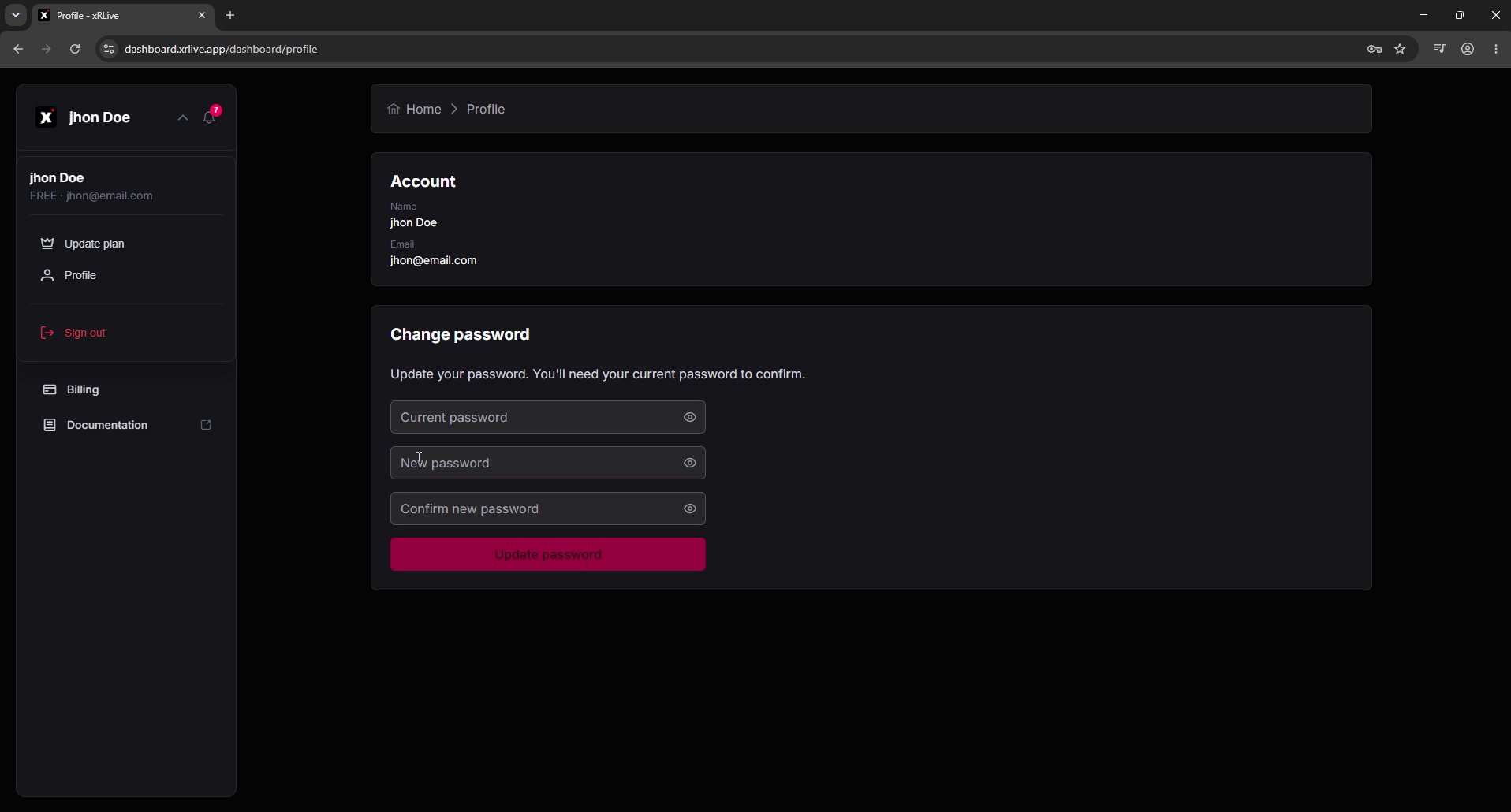
The Profile page in the xRLive dashboard
Opening your profile
1
Open the account menu
In the dashboard, click your name in the top-left corner to expand the account menu.
2
Choose Profile
Select Profile from the menu.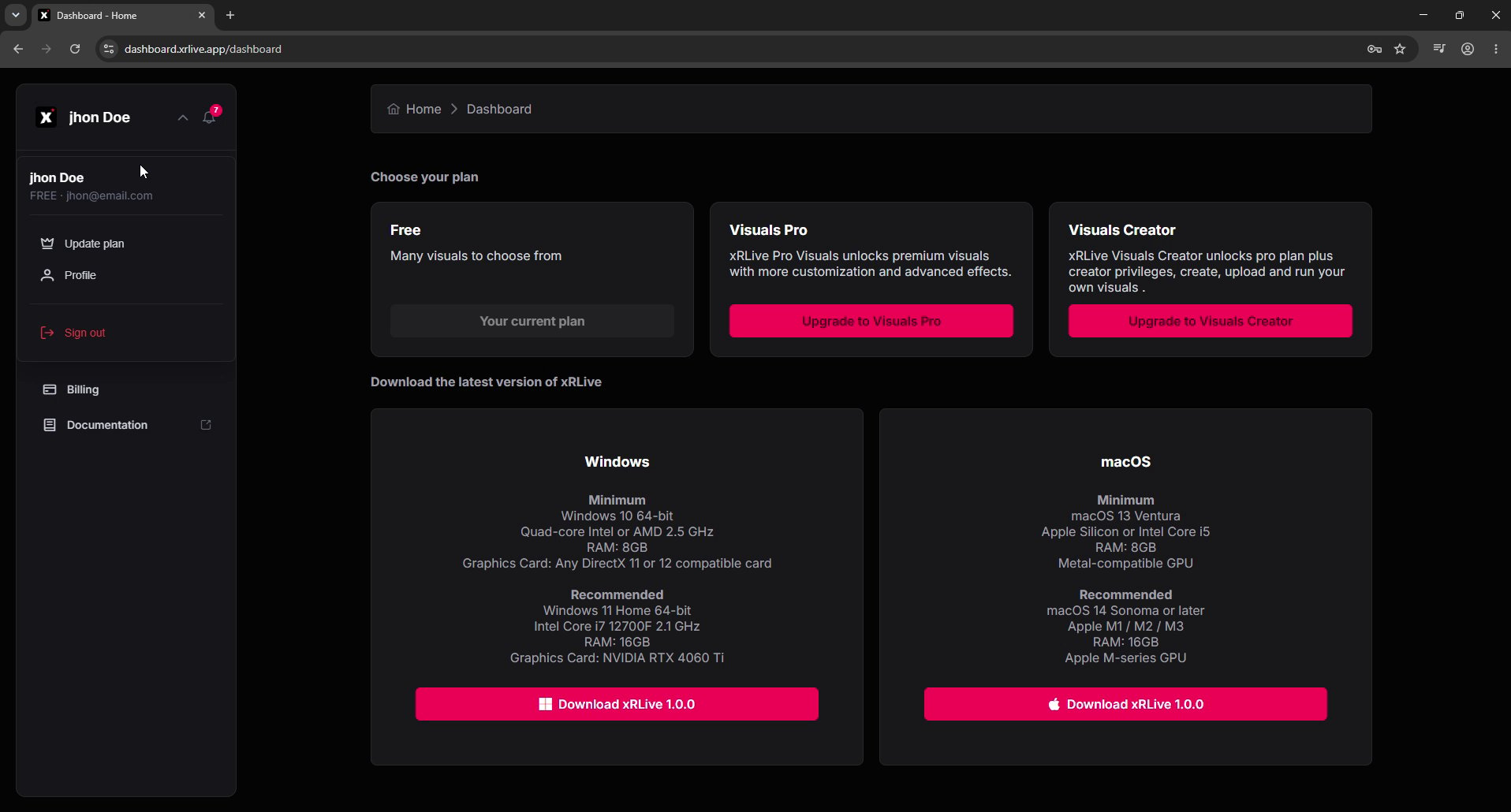
The account menu with the Profile option
Account
The Account section shows the details tied to your subscription:- Name — the name on your account.
- Email — the address you sign in with and where xRLive sends account notifications.
Change password
Use the Change password form to set a new password. You’ll need your current password to confirm the change.1
Enter your current password
Type your existing password in the Current password field.
2
Enter a new password
Type the new password in New password, then type it again in Confirm new password so they match.
3
Save the change
Click Update password. A confirmation appears once your password has been changed successfully.
If you signed up with Google, you sign in through Google and won’t manage a password here. See Sign Up.