

Before you start
- A Windows or Mac computer that meets the system requirements
- An xRLive account — sign up free
Step 1 — Create your account
Go to dashboard.xrlive.app/signup and create an account using your email address or Google.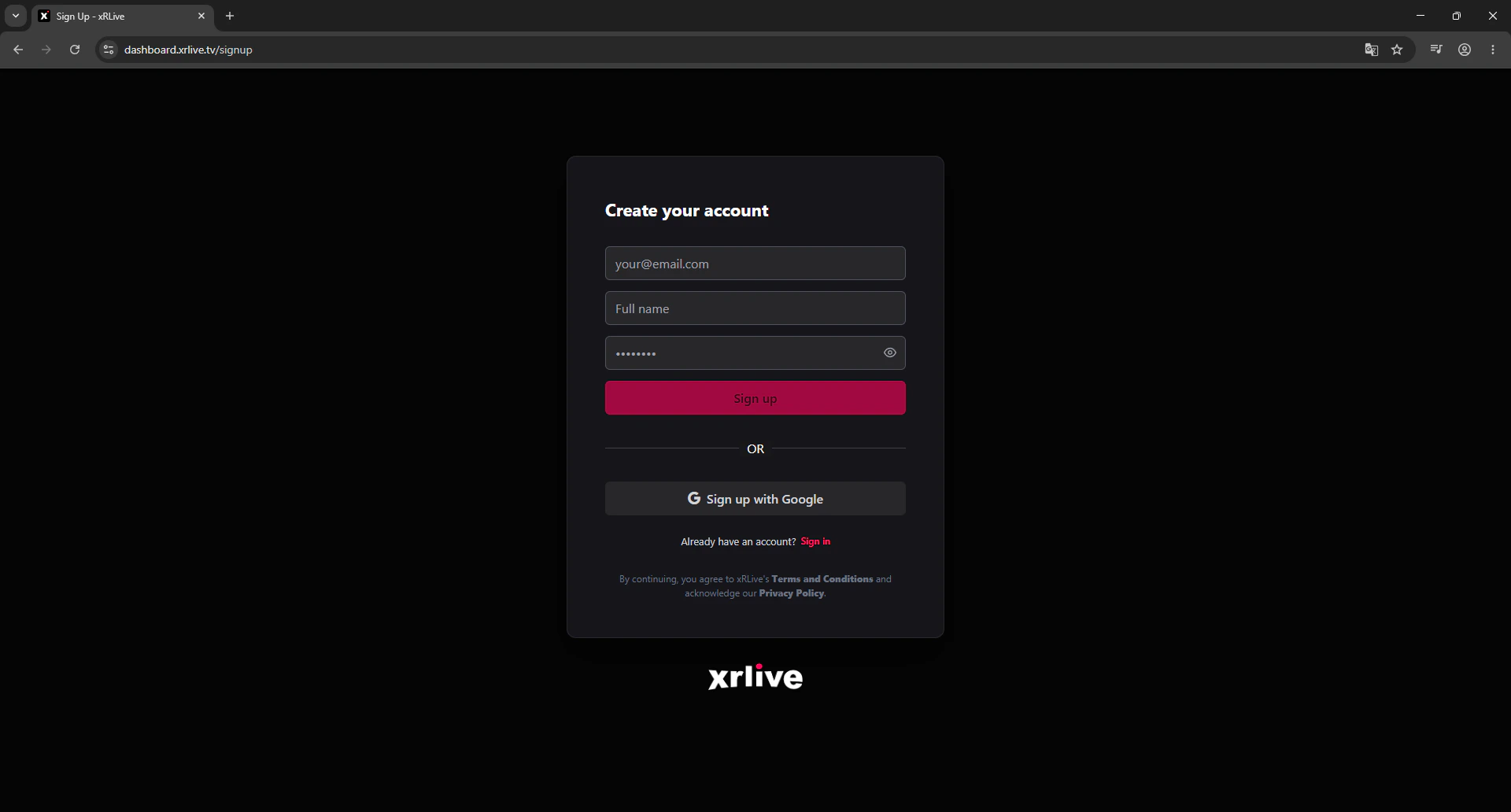
The xRLive sign-up page
Step 2 — Download and install the Launcher
In the dashboard, go to Downloads and grab the installer for your platform.- Windows
- Mac
- Download the Windows installer (
.exe) from the dashboard. - Run the installer and follow the prompts.
- Launch xRLive from your Start Menu or desktop shortcut.
Step 3 — Get a visual
Open the Marketplace in the dashboard and find a visual you’d like to run. Click Get or Buy, and the visual will appear in your library.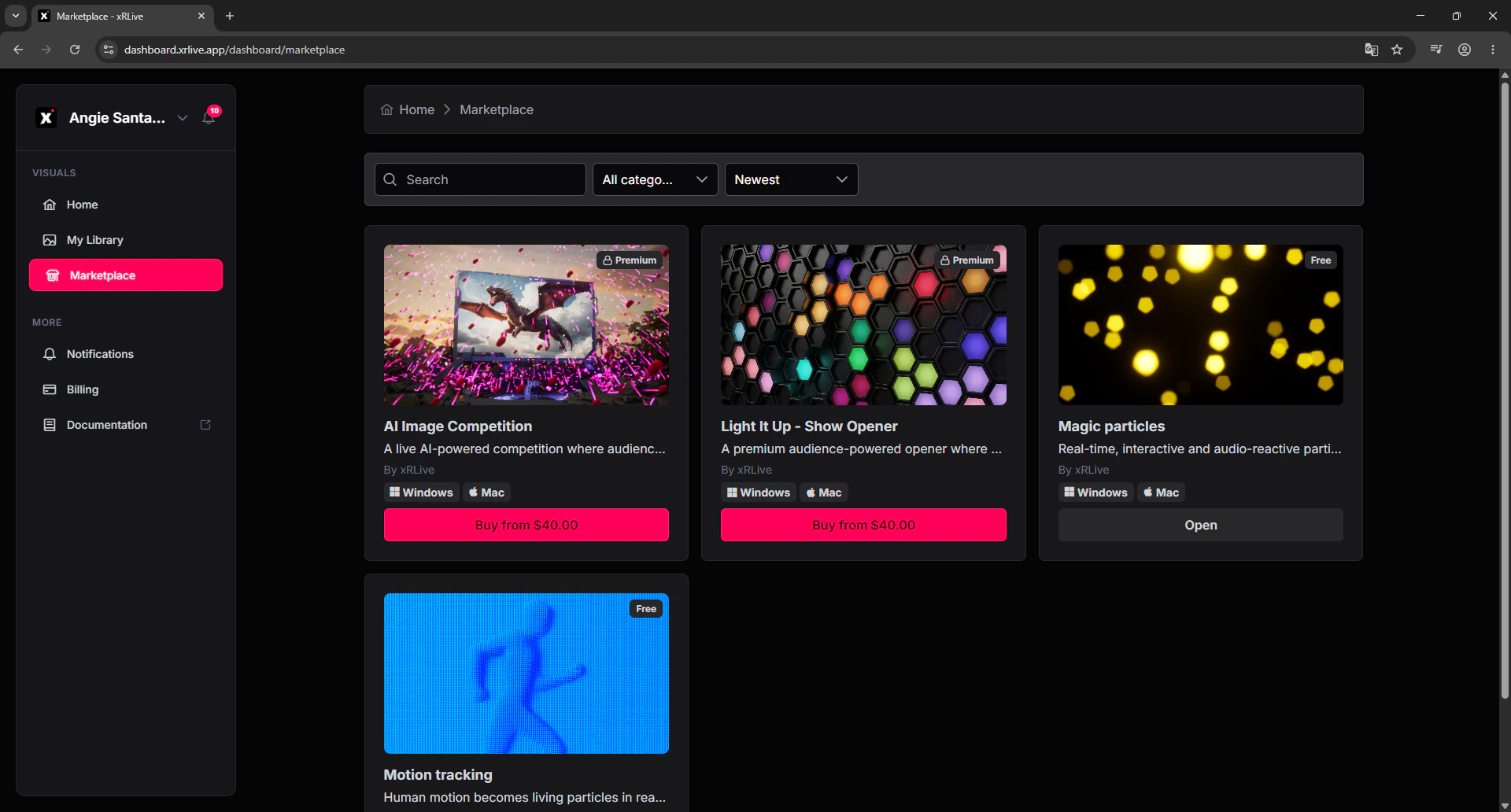
The xRLive Marketplace
Step 4 — Open and run the visual
- In the xRLive Launcher, your library is visible on the main screen.
- Find the visual you downloaded and click Open.
- The game window launches and begins rendering.
- The operator dashboard appears alongside it — use the controls to adjust the visual in real time.
A running visual with the operator dashboard
What’s next
Operator Controls
Learn how to use sliders, buttons, color pickers, and more.
Presets
Save your control values and recall them instantly during a show.
Display
Set the game window to fullscreen and route it to your stage output.
Audience Interaction
Let your audience join the show from their phones.