

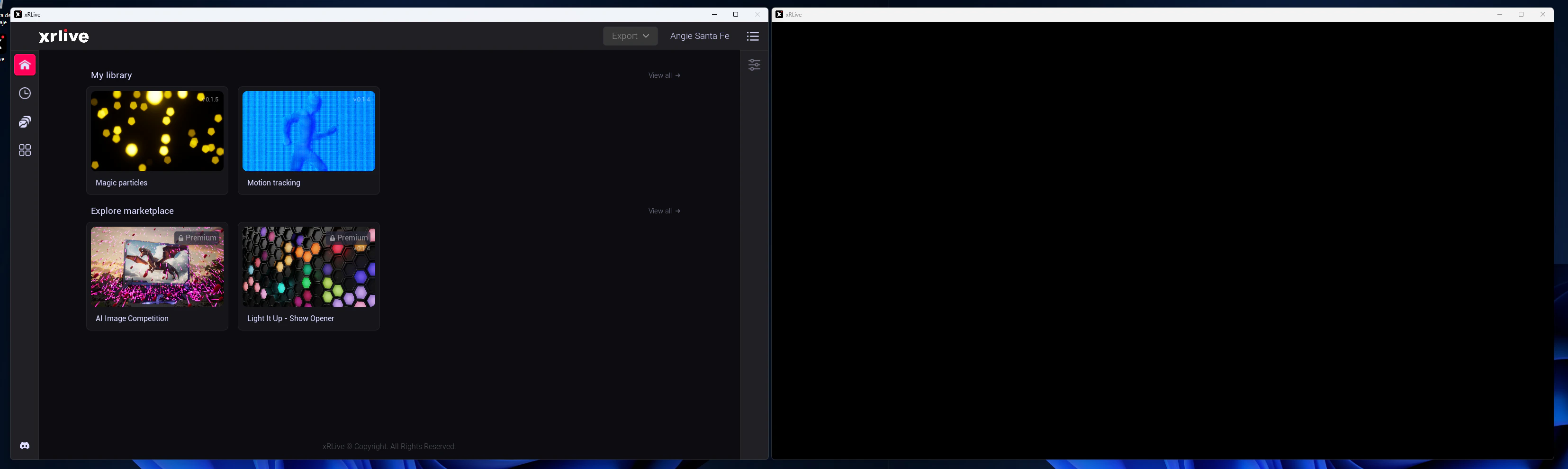
The xRLive two-window setup: operator dashboard (left) and game window on stage output (right)
The two windows
When you open a visual in the xRLive Launcher, two windows appear in the same application:
Both windows run in the same process, so control changes in the dashboard apply to the game window instantly — no lag, no networking between them.
Visuals and .xrlive files
A visual is a self-contained Unreal Engine experience packaged as a.xrlive file. You download it, and xRLive mounts and runs it at runtime — no compiling, no installation required. Each visual defines its own operator controls, audience interactions, and behavior.
The audience layer
Some visuals include live audience interaction. Your audience scans a QR code displayed on screen, joins on their phone, and participates in real time — voting, answering questions, or influencing the visual directly. Data flows from audience phones → xRLive backend → Firebase → directly into the running visual, typically in under 500 ms end-to-end.The web dashboard
dashboard.xrlive.app is where you manage everything outside the launcher:- Sign up and manage your account
- Browse and purchase visuals from the Marketplace
- Access your library of owned visuals
- Manage your subscription and billing
- (Creators) Upload, publish, and track revenue from your own visuals
Who xRLive is for
Operators & Event Producers
You run visuals during live shows — concerts, corporate events, cruise entertainment, esports, studios. xRLive is your show-control tool.
Visual Creators
You build
.xrlive visuals in Unreal Engine using the xRLive SDK, then publish them to the Marketplace or deliver them to clients.Show Designers
You design audience experiences and game shows. xRLive handles crowd data, scoring, and real-time visual response.
API Integrators
You build tools on top of xRLive — custom dashboards, automation, or show-control integrations via the REST API.