> ## Documentation Index
> Fetch the complete documentation index at: https://xrlive.mintlify.site/llms.txt
> Use this file to discover all available pages before exploring further.
# Button
> Trigger control that fires a one-shot event from the operator panel
A **Button** is a one-shot trigger. When the operator clicks it, xRLive fires a bound event in Blueprint with no value payload — the press itself is the signal. Use it to activate scene sections, start sequences, fire alerts, or trigger any discrete action that does not need a continuous value.
***
## Configuration
Buttons are declared inside `UICategories` on the `xrlive_UIpanel` component. Set **Type** to `Xrlive Button` and fill in the fields below.
| Field | Type | Description |
| ------------------- | ------ | ------------------------------------------------------------------------------------------------------------------------------------------ |
| **Name** | String | Unique ID of the control. Must match exactly (case and spaces) when referenced in Blueprint. |
| **Tooltip** | String | Optional helper text shown to the operator on hover. |
| **Color Selection** | Enum | Visual style of the button in the operator panel. `Grey Color` for standard actions, `Red Color` for destructive or high-priority actions. |
***
## Blueprint API
Call `Find Control by Name` on the `xrlive_UIpanel` reference, passing the button's **Name**. Feed the **Return Value** into `Bind Event to On Button Click`. Create a **Custom Event** and connect it to the **Event** pin.
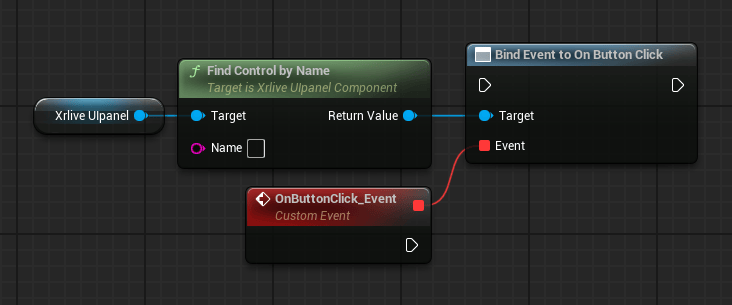 The custom event has no data output pins. The button press is the entire signal — place your action logic directly after the event node.
***
## Variants
### Back Button
The **Back Button** is a navigation variant of the standard button. It is intended for visuals that present operator categories one at a time — instead of stacking all categories in a scrollable list, the visual shows a single category per view and uses a Back Button to let the operator return to the previous view.
| Field | Type | Description |
| ----------- | ------ | --------------------------------------------------------------------------------------------------------------------------------------------- |
| **Name** | String | Unique ID of the control. The Back Button has no visible label in the operator panel — the Name is used exclusively as a Blueprint reference. |
| **Tooltip** | String | Optional helper text shown on hover. |
The Blueprint wiring is identical to the standard button: `Find Control by Name` → `Bind Event to On Button Click` → Custom Event. The navigation behavior itself is implemented in the event handler logic.
The custom event has no data output pins. The button press is the entire signal — place your action logic directly after the event node.
***
## Variants
### Back Button
The **Back Button** is a navigation variant of the standard button. It is intended for visuals that present operator categories one at a time — instead of stacking all categories in a scrollable list, the visual shows a single category per view and uses a Back Button to let the operator return to the previous view.
| Field | Type | Description |
| ----------- | ------ | --------------------------------------------------------------------------------------------------------------------------------------------- |
| **Name** | String | Unique ID of the control. The Back Button has no visible label in the operator panel — the Name is used exclusively as a Blueprint reference. |
| **Tooltip** | String | Optional helper text shown on hover. |
The Blueprint wiring is identical to the standard button: `Find Control by Name` → `Bind Event to On Button Click` → Custom Event. The navigation behavior itself is implemented in the event handler logic.