> ## Documentation Index
> Fetch the complete documentation index at: https://xrlive.mintlify.site/llms.txt
> Use this file to discover all available pages before exploring further.
# What is xRLive
> Understand the platform — visuals, the launcher, the dashboard, and the audience layer
xRLive is a real-time entertainment platform built for live events. It combines a **desktop app** that runs 3D visuals on stage, a **web dashboard** for managing your account and visuals, and an **audience interaction layer** that connects your crowd to the show in real time.
 ## The two windows
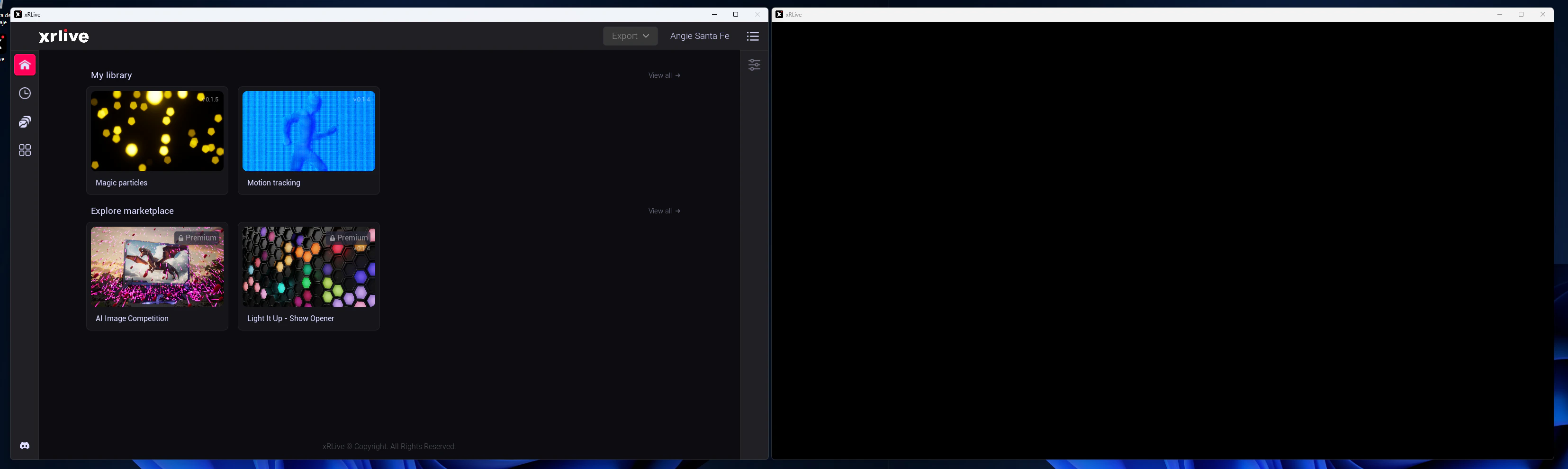
When you open a visual in the xRLive Launcher, two windows appear in the same application:
| Window | What it is | Who sees it |
| ---------------------- | ---------------------------------------------------------------- | -------------------------------------------------------------- |
| **Operator Dashboard** | The control panel with sliders, buttons, presets, and show tools | The crew / operator backstage |
| **Game Window** | The full-screen 3D render | The audience — on an LED wall, projection screen, or broadcast |
Both windows run in the same process, so control changes in the dashboard apply to the game window instantly — no lag, no networking between them.
## Visuals and .xrlive files
A **visual** is a self-contained Unreal Engine experience packaged as a `.xrlive` file. You download it, and xRLive mounts and runs it at runtime — no compiling, no installation required. Each visual defines its own operator controls, audience interactions, and behavior.
```
my_visual_v2.xrlive
└── Unreal Engine pak archive
├── Blueprint logic
├── Assets (meshes, textures, materials)
├── SDK component (operator controls)
└── Audience interaction config (optional)
```
Visuals are created by **Creators** using the xRLive SDK in Unreal Engine and distributed through the **Marketplace** or delivered directly to clients.
## The audience layer
Some visuals include live audience interaction. Your audience scans a QR code displayed on screen, joins on their phone, and participates in real time — voting, answering questions, or influencing the visual directly.
Data flows from audience phones → xRLive backend → Firebase → directly into the running visual, typically in under 500 ms end-to-end.
## The web dashboard
[dashboard.xrlive.app](https://dashboard.xrlive.app) is where you manage everything outside the launcher:
* Sign up and manage your account
* Browse and purchase visuals from the Marketplace
* Access your library of owned visuals
* Manage your subscription and billing
* **(Creators)** Upload, publish, and track revenue from your own visuals
## Who xRLive is for
You run visuals during live shows — concerts, corporate events, cruise entertainment, esports, studios. xRLive is your show-control tool.
You build `.xrlive` visuals in Unreal Engine using the xRLive SDK, then publish them to the Marketplace or deliver them to clients.
You design audience experiences and game shows. xRLive handles crowd data, scoring, and real-time visual response.
You build tools on top of xRLive — custom dashboards, automation, or show-control integrations via the REST API.
## The two windows
When you open a visual in the xRLive Launcher, two windows appear in the same application:
| Window | What it is | Who sees it |
| ---------------------- | ---------------------------------------------------------------- | -------------------------------------------------------------- |
| **Operator Dashboard** | The control panel with sliders, buttons, presets, and show tools | The crew / operator backstage |
| **Game Window** | The full-screen 3D render | The audience — on an LED wall, projection screen, or broadcast |
Both windows run in the same process, so control changes in the dashboard apply to the game window instantly — no lag, no networking between them.
## Visuals and .xrlive files
A **visual** is a self-contained Unreal Engine experience packaged as a `.xrlive` file. You download it, and xRLive mounts and runs it at runtime — no compiling, no installation required. Each visual defines its own operator controls, audience interactions, and behavior.
```
my_visual_v2.xrlive
└── Unreal Engine pak archive
├── Blueprint logic
├── Assets (meshes, textures, materials)
├── SDK component (operator controls)
└── Audience interaction config (optional)
```
Visuals are created by **Creators** using the xRLive SDK in Unreal Engine and distributed through the **Marketplace** or delivered directly to clients.
## The audience layer
Some visuals include live audience interaction. Your audience scans a QR code displayed on screen, joins on their phone, and participates in real time — voting, answering questions, or influencing the visual directly.
Data flows from audience phones → xRLive backend → Firebase → directly into the running visual, typically in under 500 ms end-to-end.
## The web dashboard
[dashboard.xrlive.app](https://dashboard.xrlive.app) is where you manage everything outside the launcher:
* Sign up and manage your account
* Browse and purchase visuals from the Marketplace
* Access your library of owned visuals
* Manage your subscription and billing
* **(Creators)** Upload, publish, and track revenue from your own visuals
## Who xRLive is for
You run visuals during live shows — concerts, corporate events, cruise entertainment, esports, studios. xRLive is your show-control tool.
You build `.xrlive` visuals in Unreal Engine using the xRLive SDK, then publish them to the Marketplace or deliver them to clients.
You design audience experiences and game shows. xRLive handles crowd data, scoring, and real-time visual response.
You build tools on top of xRLive — custom dashboards, automation, or show-control integrations via the REST API.