> ## Documentation Index
> Fetch the complete documentation index at: https://xrlive.mintlify.site/llms.txt
> Use this file to discover all available pages before exploring further.
# Presets
> Save, load, and trigger presets during a show
A preset is a saved snapshot of all operator control values for the current visual. Presets let you prepare looks ahead of time and switch between them instantly during a live show — with a single click or an OSC command.
 ## Saving a preset
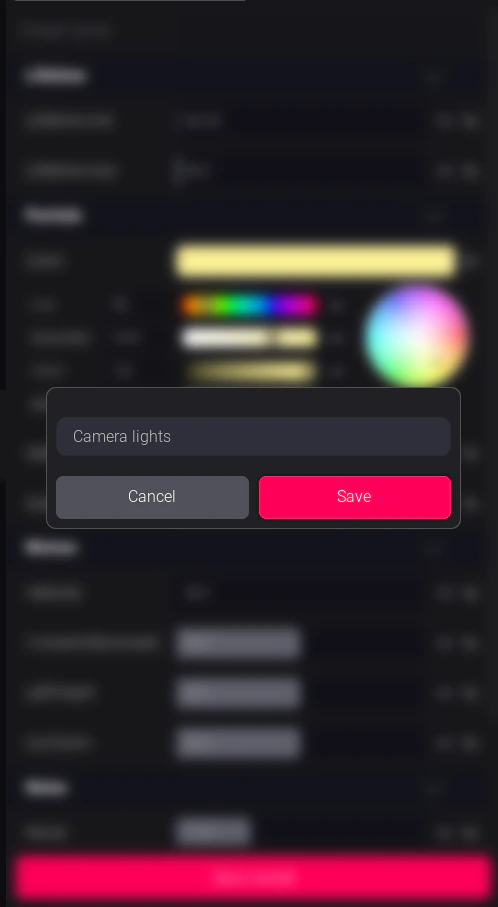
1. Set your controls to the state you want to save — adjust sliders, pick colors, set dropdowns.
2. Click **Save Preset** (or the **+** icon in the preset bar).
3. Enter a name for the preset (e.g. "Intro", "Drop", "Outro") and confirm.
The preset appears in the preset bar immediately and is saved to disk for the current visual.
## Saving a preset
1. Set your controls to the state you want to save — adjust sliders, pick colors, set dropdowns.
2. Click **Save Preset** (or the **+** icon in the preset bar).
3. Enter a name for the preset (e.g. "Intro", "Drop", "Outro") and confirm.
The preset appears in the preset bar immediately and is saved to disk for the current visual.
 ## Loading a preset
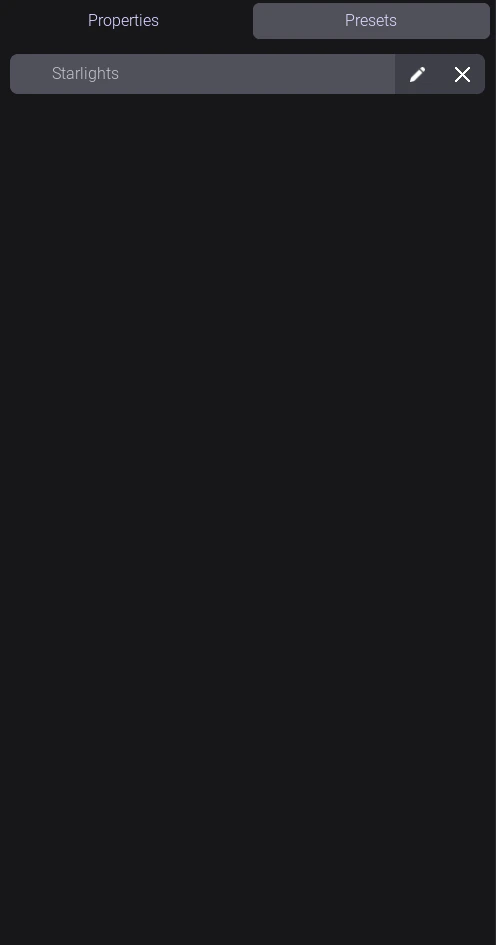
Click any preset in the preset bar. All control values instantly update to the saved state.
Preset recall is immediate — there is no crossfade or transition unless the visual creator has built one into the visual itself.
## Renaming and deleting presets
Right-click a preset in the bar for options:
* **Rename** — change the display name
* **Overwrite** — update the preset with the current control values
* **Delete** — remove the preset permanently
## Preset storage
Presets are stored locally as JSON files in:
| Platform | Path |
| -------- | -------------------------------------------------- |
| Windows | `%LOCALAPPDATA%\xRLive\Saved\Save\` |
| Mac | `~/Library/Application Support/xRLive/Saved/Save/` |
Presets are per-visual — switching to a different visual shows that visual's presets only.
## Triggering presets via OSC
Presets can be triggered remotely from a lighting console, media server, or any OSC-capable device. This is useful for hands-free operation during complex shows.
→ See [OSC Integration](/launcher/output/osc-integration) for the command format and setup.
## Preset tips for live shows
* **Name presets for cues**, not settings. "Verse", "Chorus", "Drop", "Blackout" are more useful than "Blue slow" during a fast-paced show.
* **Build your full preset list before sound check** — don't save presets live during a performance.
* **Test every preset** before the show. Load each one and confirm the game window reflects the expected look.
## Loading a preset
Click any preset in the preset bar. All control values instantly update to the saved state.
Preset recall is immediate — there is no crossfade or transition unless the visual creator has built one into the visual itself.
## Renaming and deleting presets
Right-click a preset in the bar for options:
* **Rename** — change the display name
* **Overwrite** — update the preset with the current control values
* **Delete** — remove the preset permanently
## Preset storage
Presets are stored locally as JSON files in:
| Platform | Path |
| -------- | -------------------------------------------------- |
| Windows | `%LOCALAPPDATA%\xRLive\Saved\Save\` |
| Mac | `~/Library/Application Support/xRLive/Saved/Save/` |
Presets are per-visual — switching to a different visual shows that visual's presets only.
## Triggering presets via OSC
Presets can be triggered remotely from a lighting console, media server, or any OSC-capable device. This is useful for hands-free operation during complex shows.
→ See [OSC Integration](/launcher/output/osc-integration) for the command format and setup.
## Preset tips for live shows
* **Name presets for cues**, not settings. "Verse", "Chorus", "Drop", "Blackout" are more useful than "Blue slow" during a fast-paced show.
* **Build your full preset list before sound check** — don't save presets live during a performance.
* **Test every preset** before the show. Load each one and confirm the game window reflects the expected look.