> ## Documentation Index
> Fetch the complete documentation index at: https://xrlive.mintlify.site/llms.txt
> Use this file to discover all available pages before exploring further.
# Open a Visual
> Load a visual from your library and launch the game window
## Before you open
Make sure the visual is in your library. If you haven't downloaded it yet, go to the [Marketplace](/dashboard/marketplace/browse) in the dashboard, find the visual, and click **Get** or **Buy**. It will appear in your library automatically.
## Opening a visual
Open the xRLive Launcher. Your visual library loads on the main screen, showing all owned visuals with thumbnails and names.
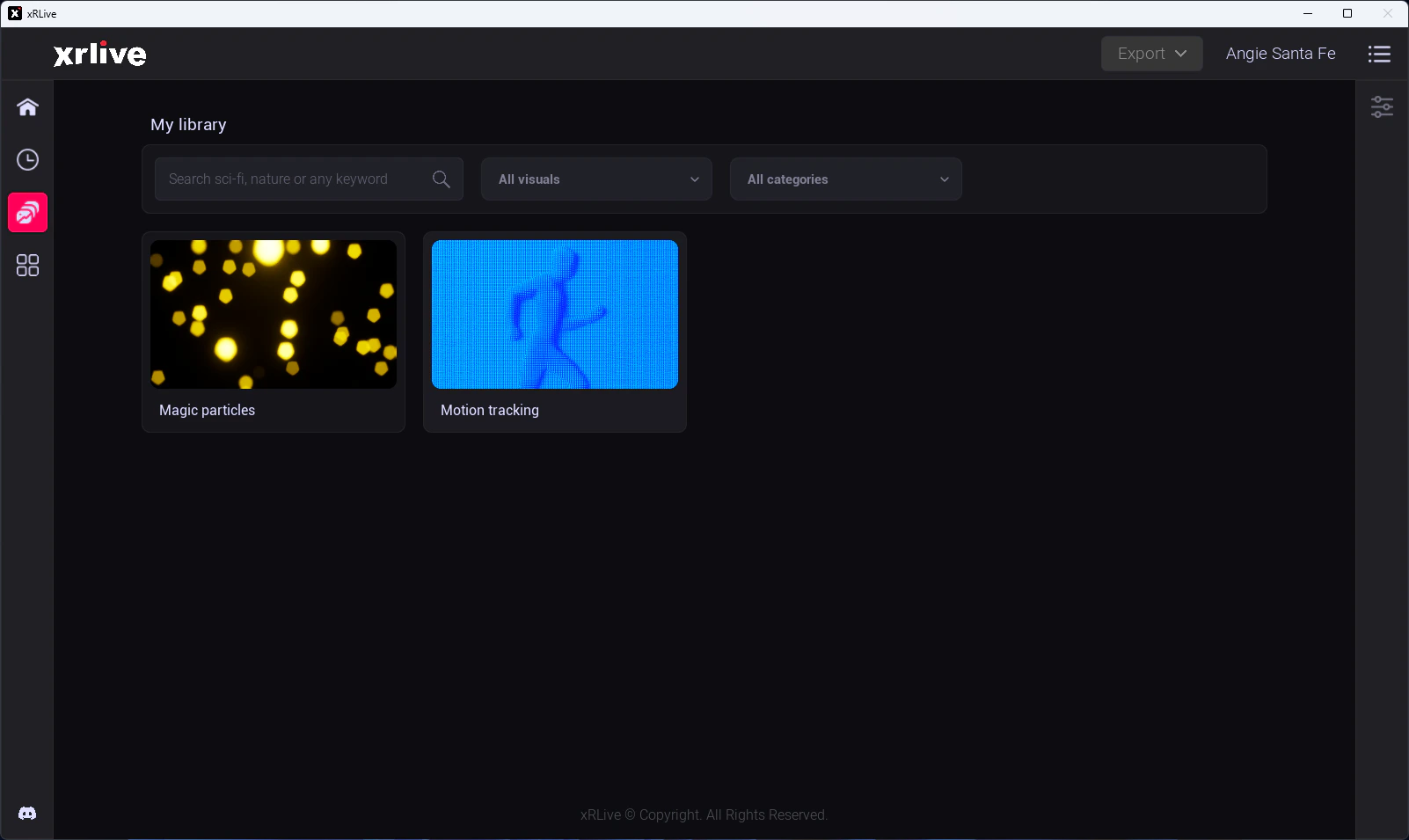 Click on a visual to select it. A detail panel appears on the right showing its thumbnail, description, and version number.
Click the **Open** button. xRLive mounts the visual pak — this typically takes 2–5 seconds.
The **Game Window** opens and starts rendering. The **Operator Dashboard** updates to show the visual's controls. You're live.
Click on a visual to select it. A detail panel appears on the right showing its thumbnail, description, and version number.
Click the **Open** button. xRLive mounts the visual pak — this typically takes 2–5 seconds.
The **Game Window** opens and starts rendering. The **Operator Dashboard** updates to show the visual's controls. You're live.
 ## Closing a visual
To close the current visual, click **Close Visual** in the operator dashboard. The game window closes, all operator controls clear, and the launcher returns to the library view.
All actors, effects, and material parameter changes made by the visual are cleaned up automatically on close.
## Switching between visuals
Close the current visual first, then open the next one. xRLive fully unloads the previous visual's assets before mounting the new one — this ensures no content from one visual bleeds into another.
Do not force-quit the game window while a visual is running. Use **Close Visual** in the operator dashboard to ensure a clean shutdown. Force-quitting may leave orphaned processes on some platforms.
## Closing a visual
To close the current visual, click **Close Visual** in the operator dashboard. The game window closes, all operator controls clear, and the launcher returns to the library view.
All actors, effects, and material parameter changes made by the visual are cleaned up automatically on close.
## Switching between visuals
Close the current visual first, then open the next one. xRLive fully unloads the previous visual's assets before mounting the new one — this ensures no content from one visual bleeds into another.
Do not force-quit the game window while a visual is running. Use **Close Visual** in the operator dashboard to ensure a clean shutdown. Force-quitting may leave orphaned processes on some platforms.