> ## Documentation Index
> Fetch the complete documentation index at: https://xrlive.mintlify.site/llms.txt
> Use this file to discover all available pages before exploring further.
# Visual Library
> Browse, search, and filter your owned visuals
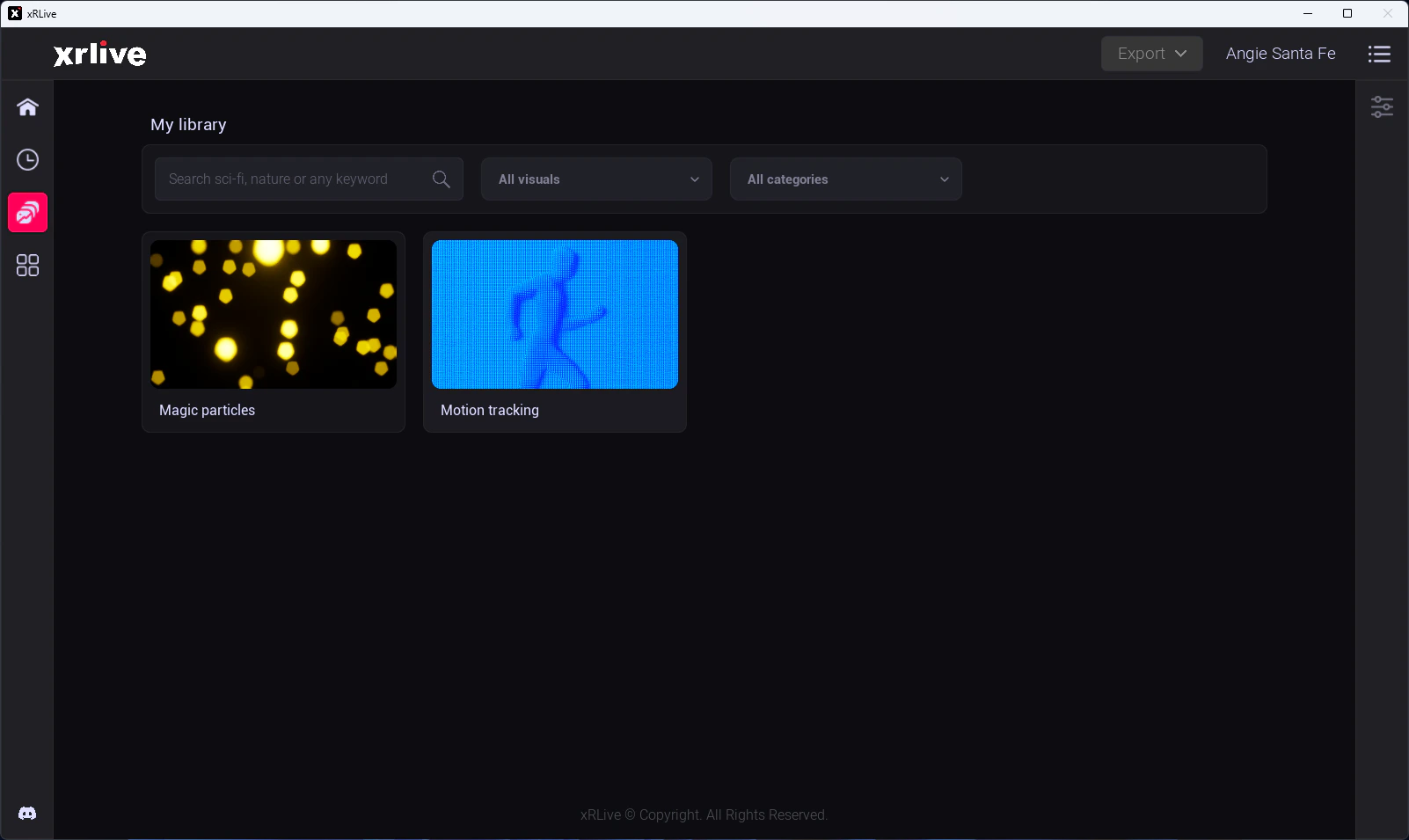
**My library** is the screen where you browse the visuals you own. Open it by clicking the **My library** button — the highlighted icon — in the left sidebar of the Launcher.
 ## Search
Use the search bar at the top to find a visual by **name or keyword**. The grid filters to matching visuals as you type.
## Filters
Two dropdowns narrow what the grid shows:
* **Visual scope** (*All visuals*) — switch between:
* **All visuals** — every visual in your library.
* **My visuals** — only the visuals you created.
* **Categories** (*All categories*) — a list of the tags assigned to a visual when it's first uploaded. Filter by category to narrow your search.
## Opening a visual
Click any card to open that visual directly — no separate confirmation step. The game window launches and the operator dashboard loads with the visual's controls.
→ See [Open a Visual](/launcher/visuals/open-a-visual) for what happens on first run, including the automatic download.
Managing visuals (such as updates or removal) isn't done from My library — this screen is for browsing and opening the visuals you own.
## Search
Use the search bar at the top to find a visual by **name or keyword**. The grid filters to matching visuals as you type.
## Filters
Two dropdowns narrow what the grid shows:
* **Visual scope** (*All visuals*) — switch between:
* **All visuals** — every visual in your library.
* **My visuals** — only the visuals you created.
* **Categories** (*All categories*) — a list of the tags assigned to a visual when it's first uploaded. Filter by category to narrow your search.
## Opening a visual
Click any card to open that visual directly — no separate confirmation step. The game window launches and the operator dashboard loads with the visual's controls.
→ See [Open a Visual](/launcher/visuals/open-a-visual) for what happens on first run, including the automatic download.
Managing visuals (such as updates or removal) isn't done from My library — this screen is for browsing and opening the visuals you own.