> ## Documentation Index
> Fetch the complete documentation index at: https://xrlive.mintlify.site/llms.txt
> Use this file to discover all available pages before exploring further.
# Display
> Fullscreen, windowed mode, display selection, and resolution
Display settings control how and where the **main window** — the game window that renders your visual output — is displayed. Use them to send the output to a specific monitor, switch between windowed and fullscreen, or set an exact resolution.
## Select display
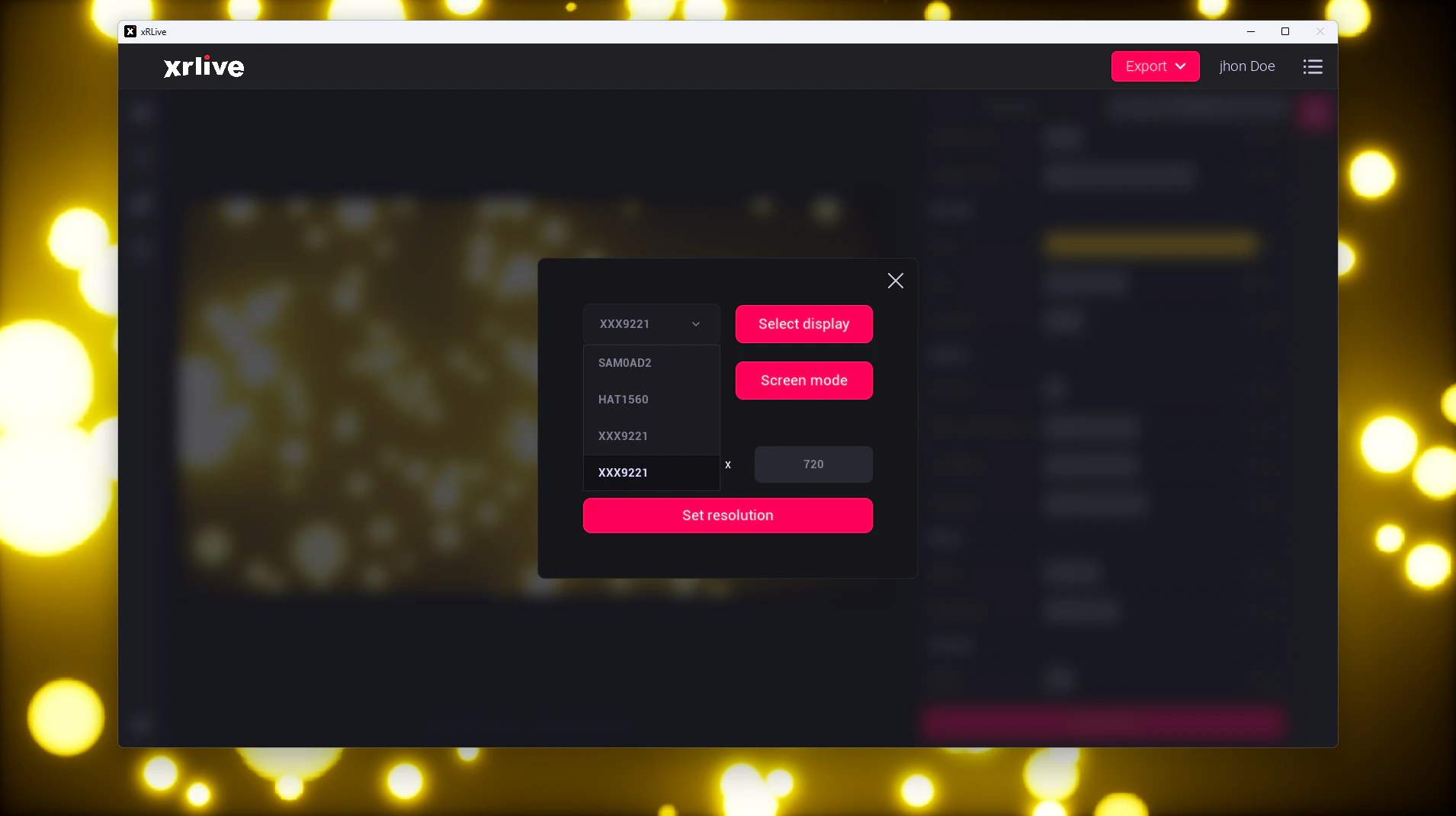
A dropdown that lists every display currently connected to your system. Choose the display you want, then click **Select display**. The main window moves to that display and automatically switches to fullscreen.
 ## Screen mode
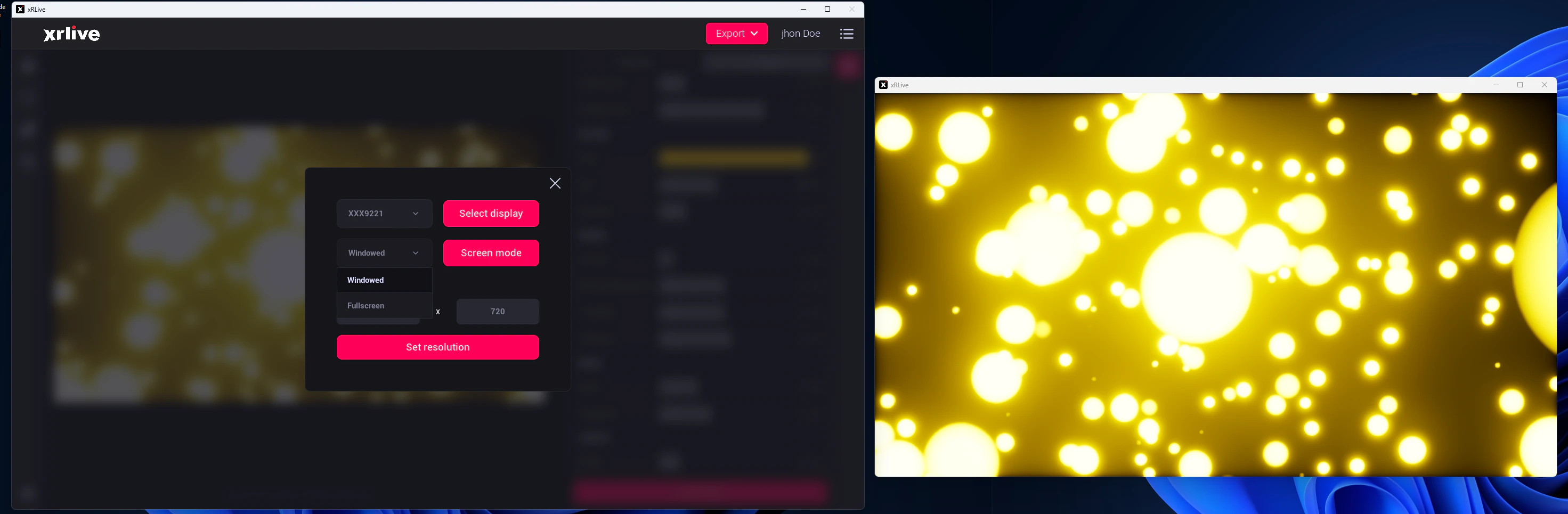
A dropdown that switches the main window between **Windowed** and **Fullscreen**. Click **Screen mode** to apply your choice.
* **Windowed** — the main window is resized to a 1280 × 720 window.
* **Fullscreen** — the main window fills the selected display, using its full native resolution.
## Screen mode
A dropdown that switches the main window between **Windowed** and **Fullscreen**. Click **Screen mode** to apply your choice.
* **Windowed** — the main window is resized to a 1280 × 720 window.
* **Fullscreen** — the main window fills the selected display, using its full native resolution.
 ## Custom resolution
Type an exact resolution (width × height) for the main window. Click **Set resolution** and the main window changes to the resolution you entered.
## Custom resolution
Type an exact resolution (width × height) for the main window. Click **Set resolution** and the main window changes to the resolution you entered.
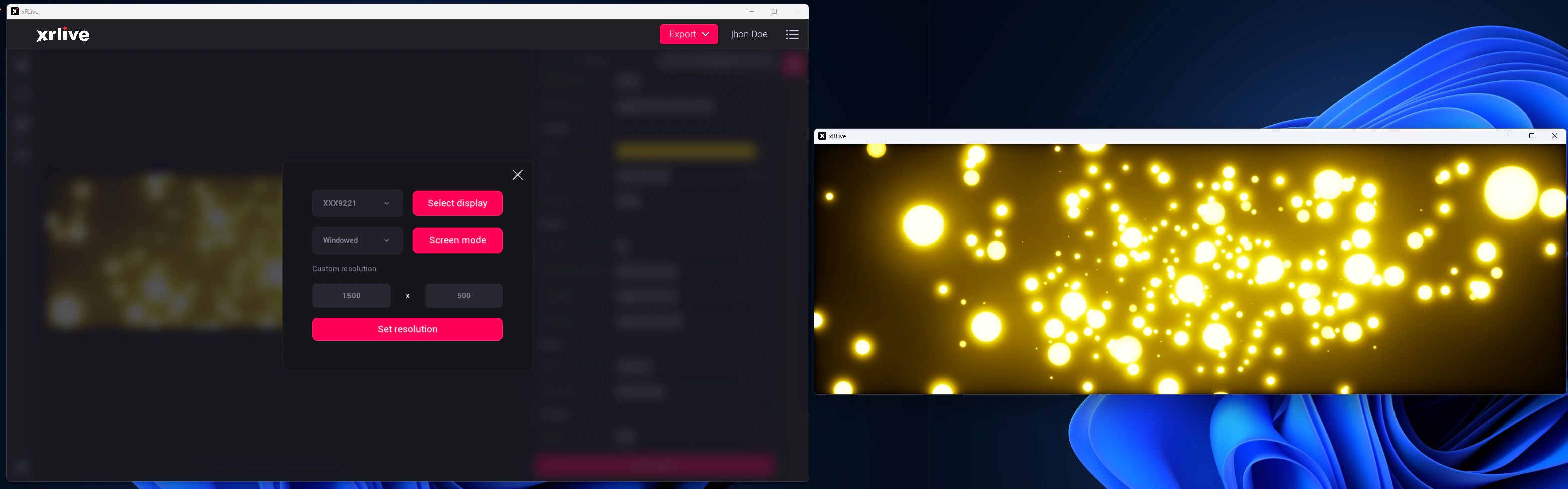 While a visual is open, its viewport automatically resizes to match the main window. Any change you make here — display, screen mode, or resolution — is reflected in the visual output right away.