> ## Documentation Index
> Fetch the complete documentation index at: https://xrlive.mintlify.site/llms.txt
> Use this file to discover all available pages before exploring further.
# Launcher Interface
> Tour of the operator dashboard and game window layout
When xRLive is running with a visual loaded, you'll see two windows: the **Operator Dashboard** and the **Game Window**. This page walks through every section of the operator dashboard.
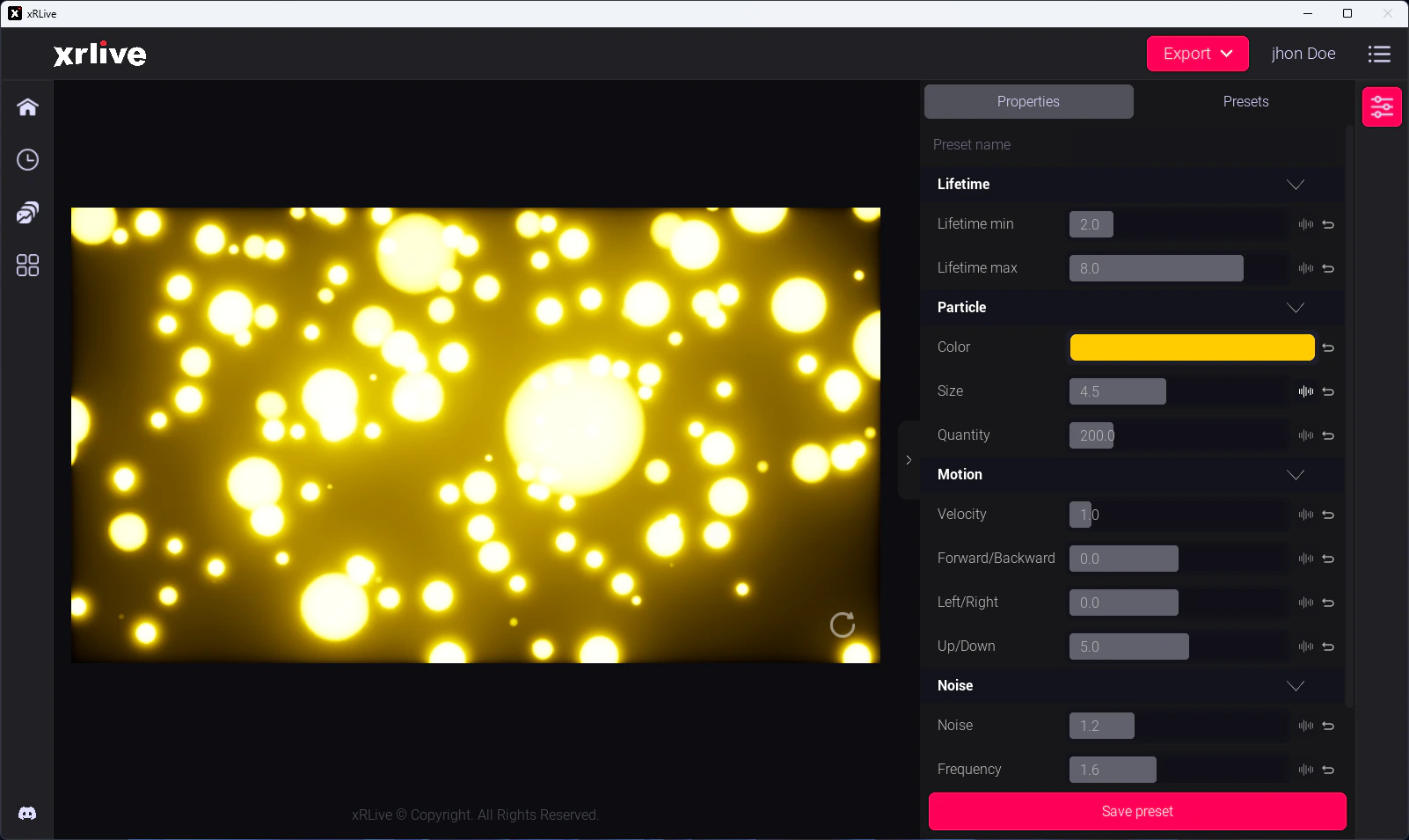 ## Operator dashboard layout
### 1 — Visual selector
The left panel lists all visuals in your library. Click any visual to see its details — thumbnail, name, description, and version. Click **Open** to load it.
### 2 — Viewport preview
The center of the dashboard shows a scaled preview of the game window. It stays in sync with the live output and scales to maintain the correct aspect ratio as you resize the dashboard.
### 3 — Control panel
The right panel shows the operator controls exposed by the running visual. Controls vary per visual but can include:
* **Sliders** — adjust float values (intensity, speed, blur, etc.)
* **Buttons** — trigger one-shot events
* **Checkboxes** — toggle features on/off
* **Dropdowns** — switch between named options
* **Color pickers** — change colors live
* **Text inputs** — send text into the visual
→ See [Operator Controls](/launcher/visuals/operator-controls) for details on each control type.
### 4 — Preset bar
Above or below the control panel (depending on your layout) is the preset bar. It shows saved presets for the active visual and lets you save, load, and delete them.
## Operator dashboard layout
### 1 — Visual selector
The left panel lists all visuals in your library. Click any visual to see its details — thumbnail, name, description, and version. Click **Open** to load it.
### 2 — Viewport preview
The center of the dashboard shows a scaled preview of the game window. It stays in sync with the live output and scales to maintain the correct aspect ratio as you resize the dashboard.
### 3 — Control panel
The right panel shows the operator controls exposed by the running visual. Controls vary per visual but can include:
* **Sliders** — adjust float values (intensity, speed, blur, etc.)
* **Buttons** — trigger one-shot events
* **Checkboxes** — toggle features on/off
* **Dropdowns** — switch between named options
* **Color pickers** — change colors live
* **Text inputs** — send text into the visual
→ See [Operator Controls](/launcher/visuals/operator-controls) for details on each control type.
### 4 — Preset bar
Above or below the control panel (depending on your layout) is the preset bar. It shows saved presets for the active visual and lets you save, load, and delete them.
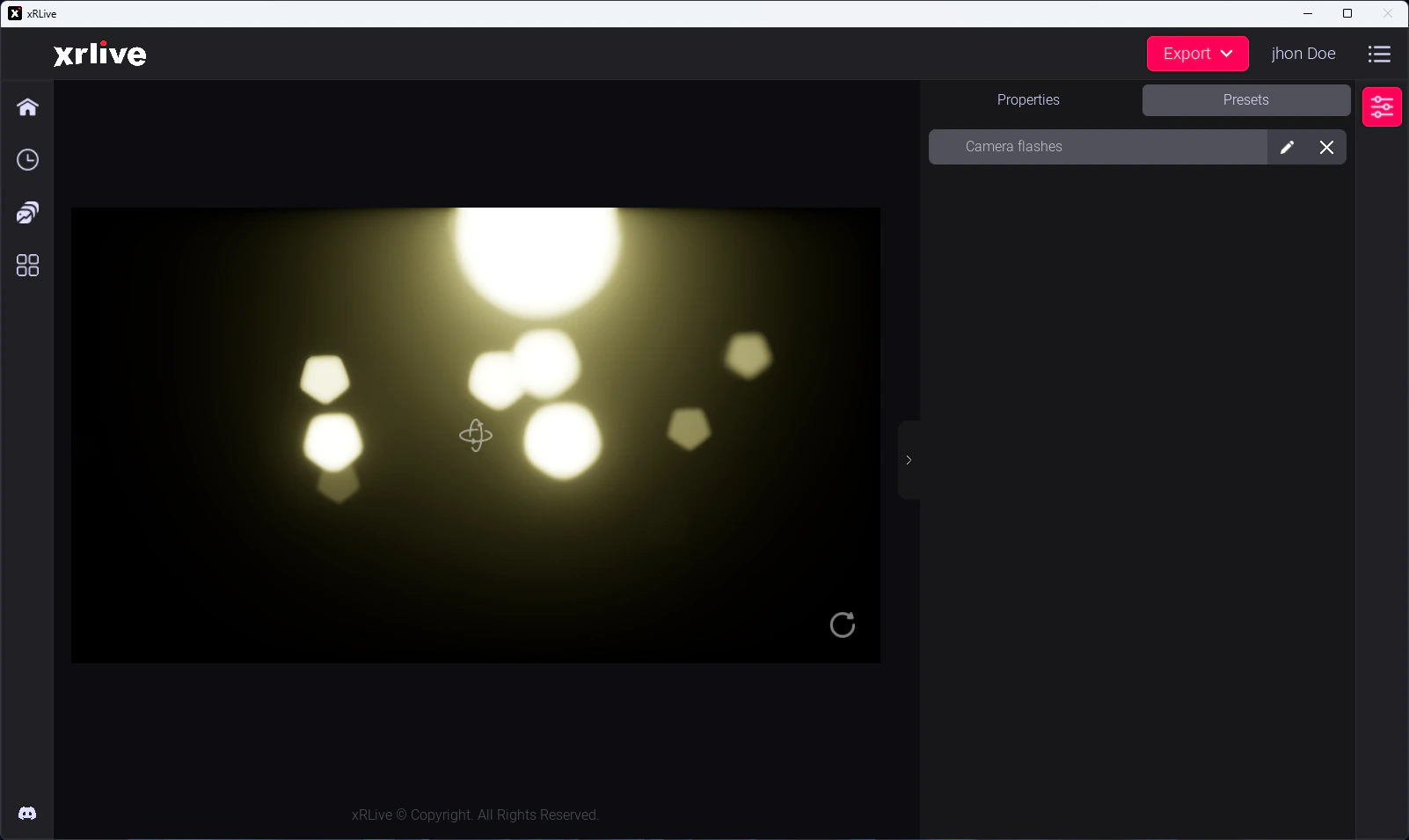 → See [Presets](/launcher/visuals/presets) for the full workflow.
## Game window
The game window renders the visual output. In a live show, this is the window you route to your stage display — LED wall, projector, or broadcast capture card.
→ See [Presets](/launcher/visuals/presets) for the full workflow.
## Game window
The game window renders the visual output. In a live show, this is the window you route to your stage display — LED wall, projector, or broadcast capture card.
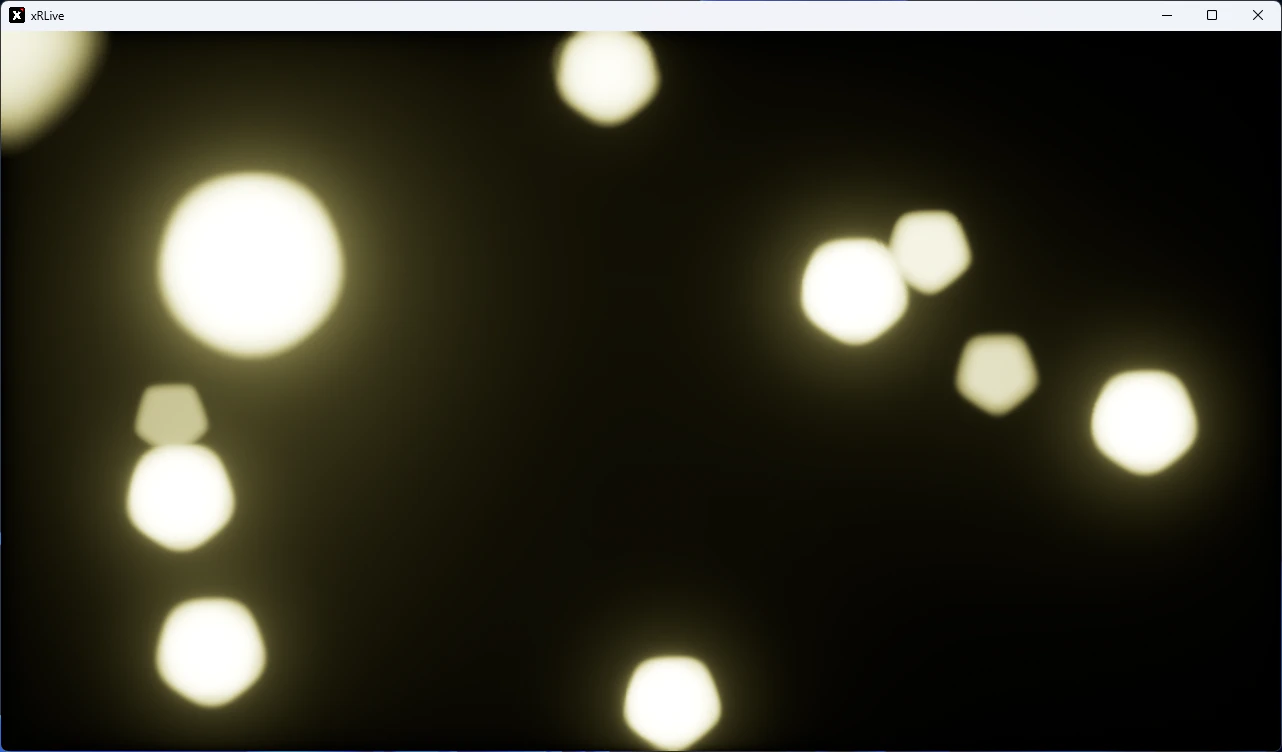 By default the game window opens on your primary display. To move it to your stage output and set it to fullscreen, see [Display](/launcher/ui/window-settings).