> ## Documentation Index
> Fetch the complete documentation index at: https://xrlive.mintlify.site/llms.txt
> Use this file to discover all available pages before exploring further.
# Camera Setup
> Connect and configure camera capture devices
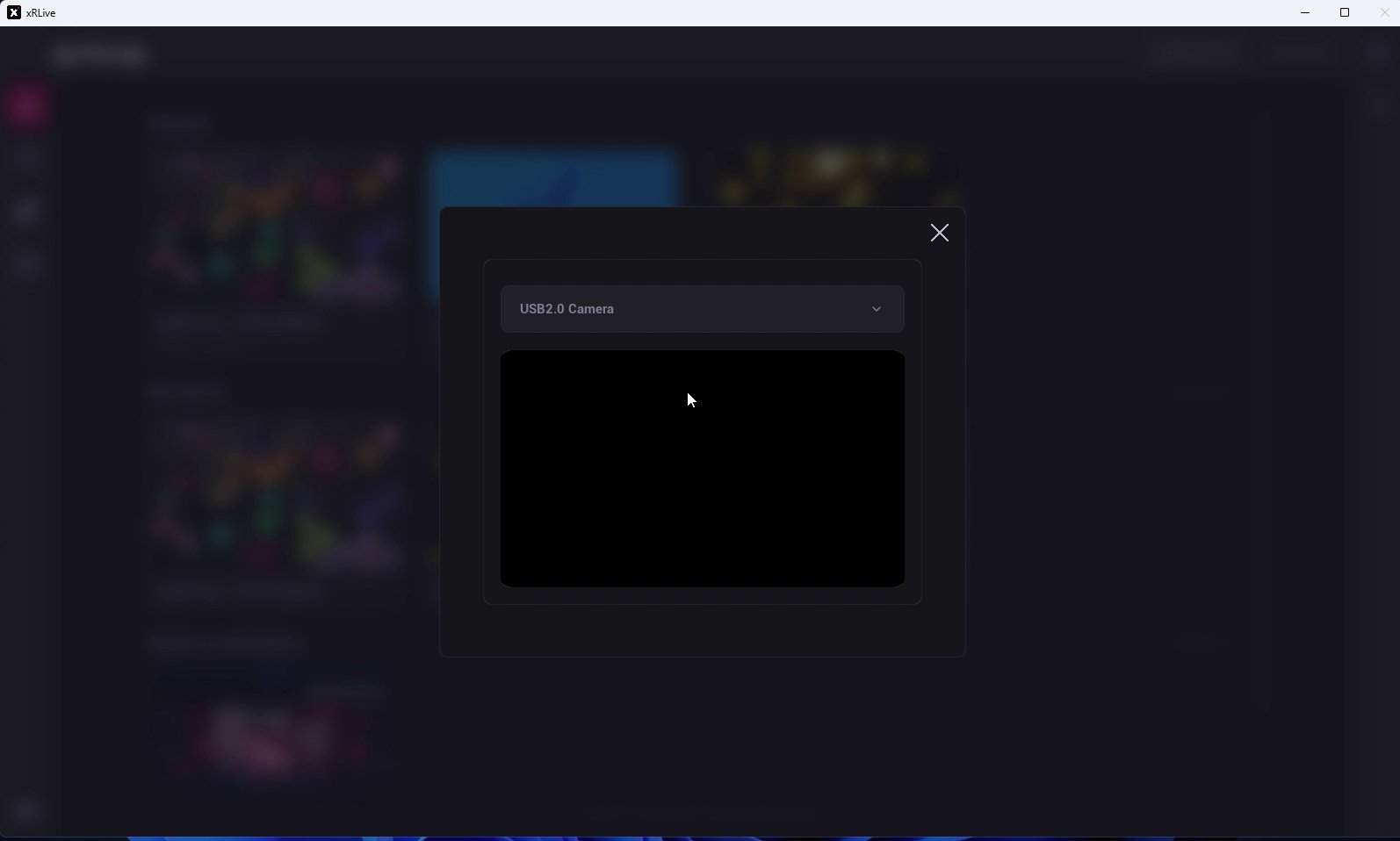
Camera Setup lets you pick the camera xRLive uses for visuals that include a live camera feed.
Open it from the menu in the top-right corner of the launcher and choose **Camera**.
Select your camera from the dropdown — any camera connected to your computer, or **Empty** to use none. When you select an enabled camera, its live capture appears in the **preview** below the dropdown, so you can confirm it's working before you go on stage.
 The first time a visual uses the camera, your operating system may ask you to grant camera permission. If you deny it, enable it again in your OS privacy settings.