> ## Documentation Index
> Fetch the complete documentation index at: https://xrlive.mintlify.site/llms.txt
> Use this file to discover all available pages before exploring further.
# Audio Setup
> Route audio input for reactivity and monitoring
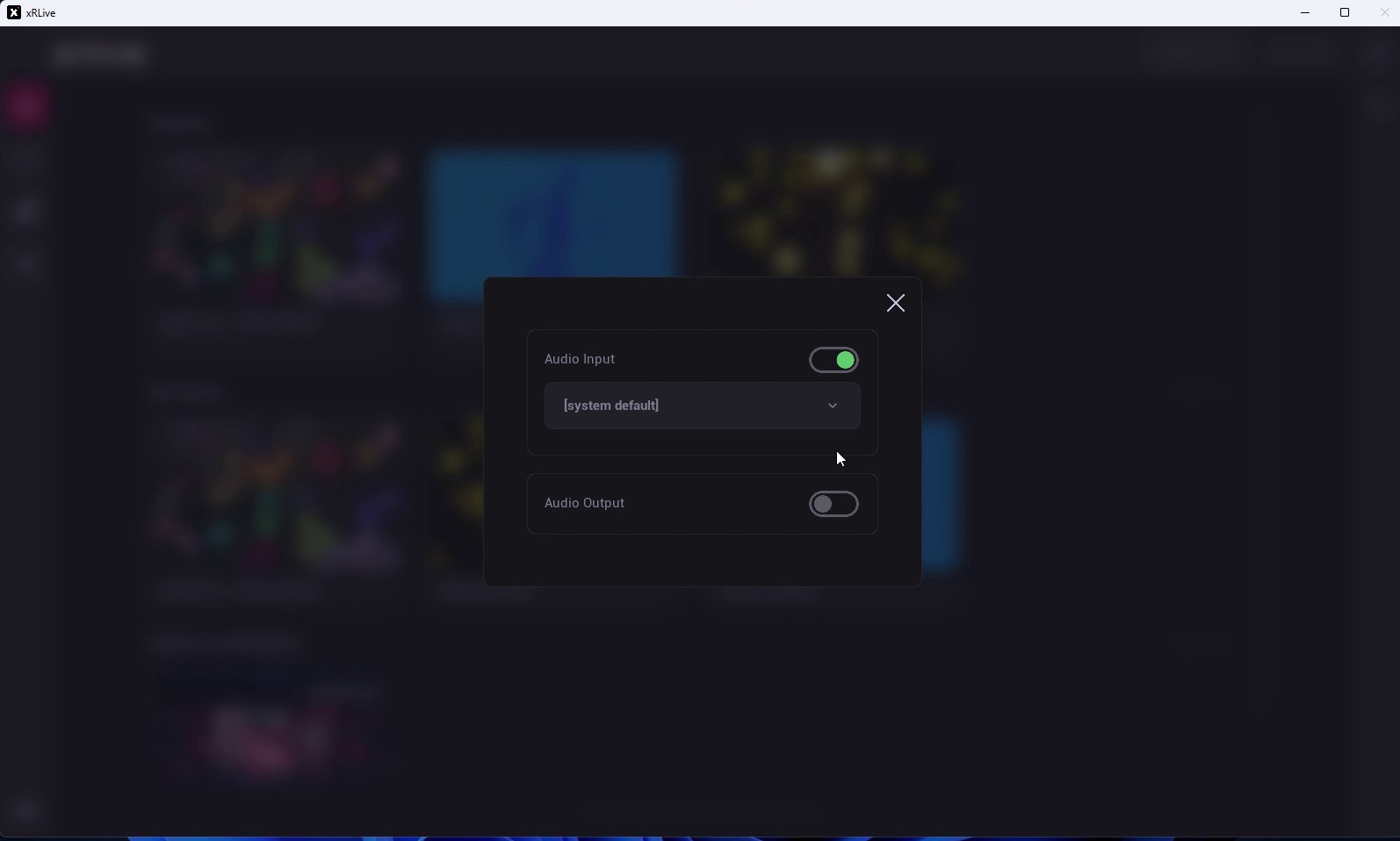
Audio Setup is where you pick the audio devices xRLive uses. The audio input is the signal that feeds features like [Audio Reactivity](/launcher/visuals/audio-reactivity).
Open it from the menu in the top-right corner of the launcher and choose **Audio**.
 ## Audio Input
Turn on **Audio Input** and choose the device xRLive listens to from the dropdown — a microphone or any other input device connected to your computer, or **\[system default]**. This is the signal that drives audio-reactive controls.
## Audio Output
Turn on **Audio Output** and choose where xRLive sends audio from the dropdown — your speakers or any other output device connected to your computer, or **\[system default]**.
The audio input selected here is the source for [Audio Reactivity](/launcher/visuals/audio-reactivity).
## Audio Input
Turn on **Audio Input** and choose the device xRLive listens to from the dropdown — a microphone or any other input device connected to your computer, or **\[system default]**. This is the signal that drives audio-reactive controls.
## Audio Output
Turn on **Audio Output** and choose where xRLive sends audio from the dropdown — your speakers or any other output device connected to your computer, or **\[system default]**.
The audio input selected here is the source for [Audio Reactivity](/launcher/visuals/audio-reactivity).