> ## Documentation Index
> Fetch the complete documentation index at: https://xrlive.mintlify.site/llms.txt
> Use this file to discover all available pages before exploring further.
# Interactions
> The ways your audience can take part during a live visual
Audience-enabled visuals invite the crowd to take part from their phones. The exact interaction depends on the visual you're running, but most of them fall into a few common types. They all share the same way in — the audience [scans a QR code to join](/launcher/audience/qr-join).
## Types of interaction
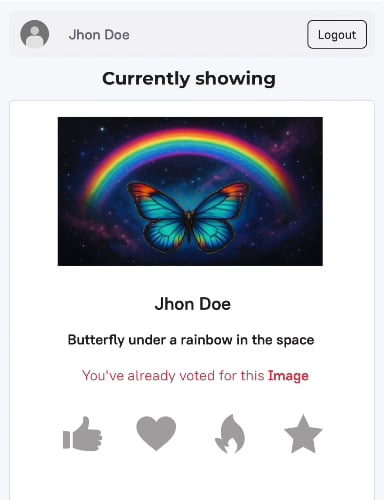
The audience reacts to whatever is on screen — like, love, fire, star, and similar. Reactions are counted live and can trigger effects on stage.
The audience picks a favorite among several options. The most-voted entry rises to the top and can be highlighted on stage.
The audience answers a question or chooses an option, and the results update live on the game window.
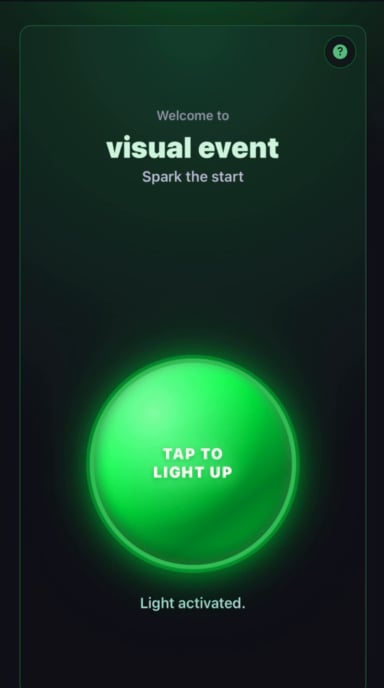
Everyone contributes toward a shared goal at the same time — for example, tapping to light up the stage together.
The audience sends in their own content — a prompt, a message, or an image — which then appears on stage.
You don't enable these one by one. The interactions a visual offers are built into the visual itself — starting the experience makes them available to the audience automatically.
## What it looks like
A couple of real examples from audience-enabled visuals, seen on an audience member's phone:
 ## Where to go next
How the audience gets in — the QR code and the join flow.
Full competitive experiences with rounds, scoring, and a winner.
## Where to go next
How the audience gets in — the QR code and the join flow.
Full competitive experiences with rounds, scoring, and a winner.