> ## Documentation Index
> Fetch the complete documentation index at: https://xrlive.mintlify.site/llms.txt
> Use this file to discover all available pages before exploring further.
# AI Image Contest
> Run full game show experiences with scoring and rounds
Game shows are full audience experiences with a clear arc: the crowd takes part, entries play out on stage, the room reacts, and a winner is crowned. The flagship example is the **AI Image Contest**, where the audience creates AI images from their phones and the crowd's reactions decide who wins.
## Setting up the experience
When you open the visual, you create an experience before going live. The setup lives in the **Properties** panel on the right.
 Give it a name so you can recognize it later — for example, the name of your event.
Upload a logo to brand the experience. It appears as part of the on-stage presentation.
Choose a theme color to match your event's look.
Turn on **Content moderation** to filter what the audience submits, and use the **pre-prompt** field to steer the kind of images the audience can create.
Click **Create experience** to build it. From there you can start the show.
## Running the show
Starting the experience puts the title, a countdown, and the join **QR code** on the game window. The audience scans to join — see [QR code & joining](/launcher/audience/qr-join) for the join flow.
From their phones, the audience types a prompt, generates an AI image, and submits their favorite. Each submission is projected on stage with the creator's name.
Give it a name so you can recognize it later — for example, the name of your event.
Upload a logo to brand the experience. It appears as part of the on-stage presentation.
Choose a theme color to match your event's look.
Turn on **Content moderation** to filter what the audience submits, and use the **pre-prompt** field to steer the kind of images the audience can create.
Click **Create experience** to build it. From there you can start the show.
## Running the show
Starting the experience puts the title, a countdown, and the join **QR code** on the game window. The audience scans to join — see [QR code & joining](/launcher/audience/qr-join) for the join flow.
From their phones, the audience types a prompt, generates an AI image, and submits their favorite. Each submission is projected on stage with the creator's name.
 As entries cycle on stage, the audience reacts to the ones they like. Every reaction fires off an effect on stage and is counted live, so the room can see which entries are pulling ahead.
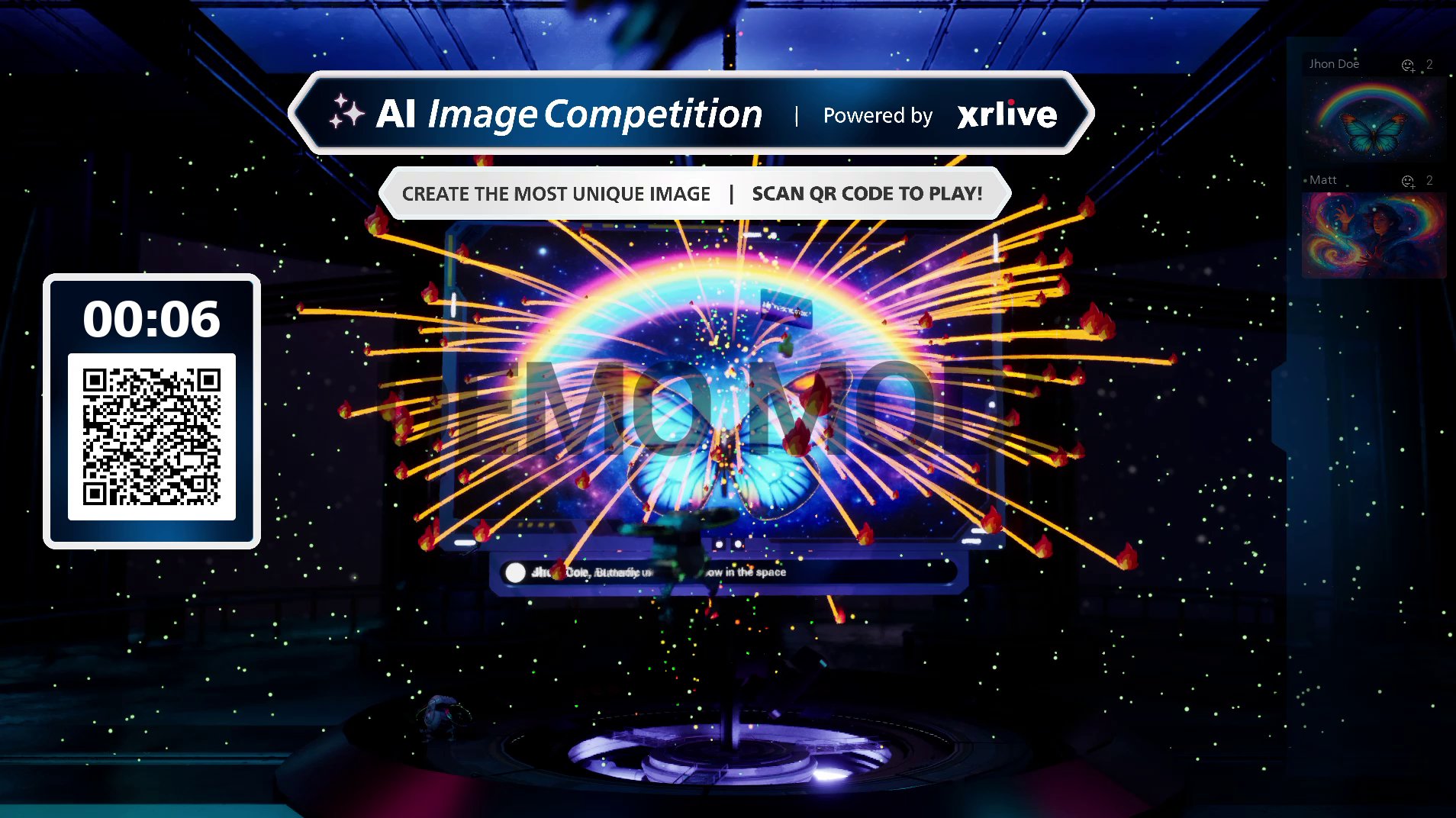 When the countdown ends, the experience tallies the reactions and shows a ranking. The top entry is featured as the **winner**.
 **Demo vs. live experiences.** A **demo** experience can be run again and again and keeps every image that's been created — handy for testing and rehearsals. A **live** experience runs once and is then cleared from the system, so each show starts fresh.
## Where to go next
A closer look at how the audience scans in from their phones.
The full range of ways an audience can take part during a visual.
**Demo vs. live experiences.** A **demo** experience can be run again and again and keeps every image that's been created — handy for testing and rehearsals. A **live** experience runs once and is then cleared from the system, so each show starts fresh.
## Where to go next
A closer look at how the audience scans in from their phones.
The full range of ways an audience can take part during a visual.