> ## Documentation Index
> Fetch the complete documentation index at: https://xrlive.mintlify.site/llms.txt
> Use this file to discover all available pages before exploring further.
# Sign In
> Log in to the xRLive dashboard
Go to [dashboard.xrlive.app/signin](https://dashboard.xrlive.app/signin) to log in.
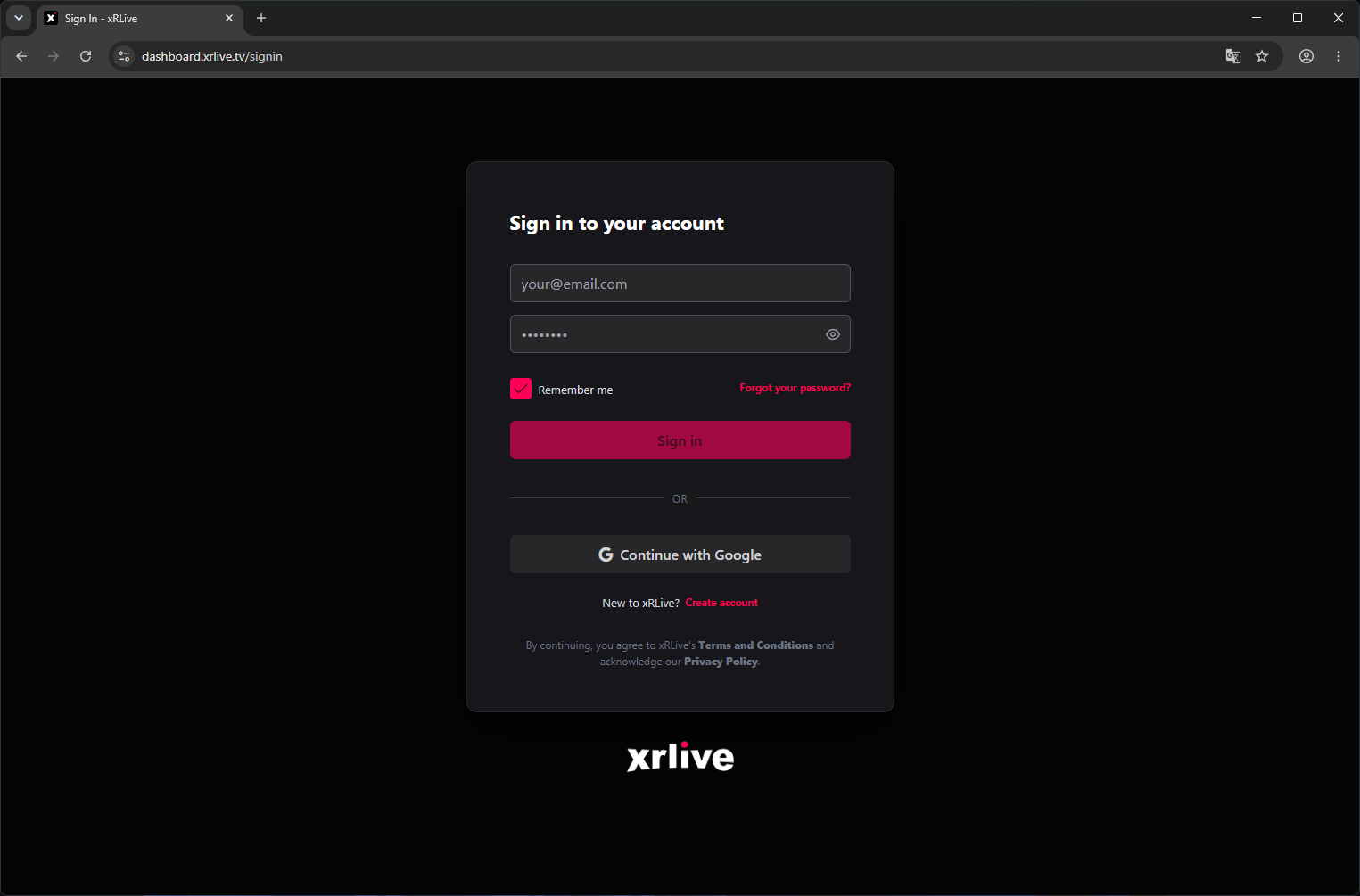 ## Sign in with email
Enter your **email address** and **password**, then click **Sign In**.
## Sign in with Google
Click **Continue with Google** and select your account. This works if you originally signed up with Google or linked Google to your account.
## Forgot your password?
Click **Forgot password?** on the sign-in page. Enter your email address and you'll receive a reset link within a few minutes. Check your spam folder if it doesn't arrive.
## Stay signed in
Check **Remember me** to stay signed in across browser sessions. If you're on a shared or public machine, leave this unchecked.
## Signing in via the Launcher
The xRLive desktop app has its own sign-in screen. Enter the same credentials you use on the web dashboard — your account and library are shared across both.
If you use Google sign-in, the Launcher will open a browser window to complete authentication. Make sure your default browser is signed in to the correct Google account.
## Sign in with email
Enter your **email address** and **password**, then click **Sign In**.
## Sign in with Google
Click **Continue with Google** and select your account. This works if you originally signed up with Google or linked Google to your account.
## Forgot your password?
Click **Forgot password?** on the sign-in page. Enter your email address and you'll receive a reset link within a few minutes. Check your spam folder if it doesn't arrive.
## Stay signed in
Check **Remember me** to stay signed in across browser sessions. If you're on a shared or public machine, leave this unchecked.
## Signing in via the Launcher
The xRLive desktop app has its own sign-in screen. Enter the same credentials you use on the web dashboard — your account and library are shared across both.
If you use Google sign-in, the Launcher will open a browser window to complete authentication. Make sure your default browser is signed in to the correct Google account.