> ## Documentation Index
> Fetch the complete documentation index at: https://xrlive.mintlify.site/llms.txt
> Use this file to discover all available pages before exploring further.
# Profile
> Manage your account details and password
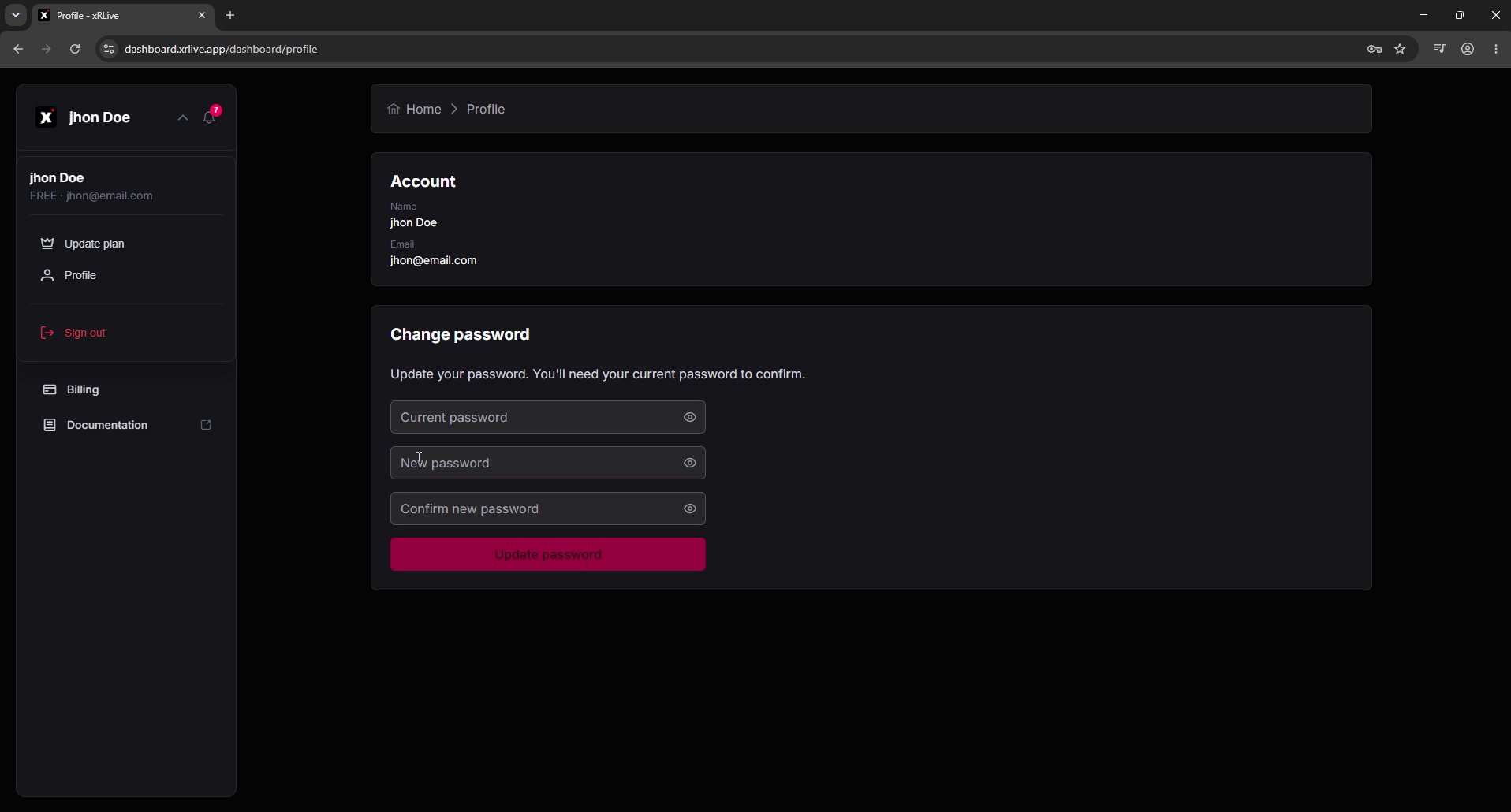
Your **Profile** page is where you review your account details and change your password. It lives in the xRLive dashboard.
 ## Opening your profile
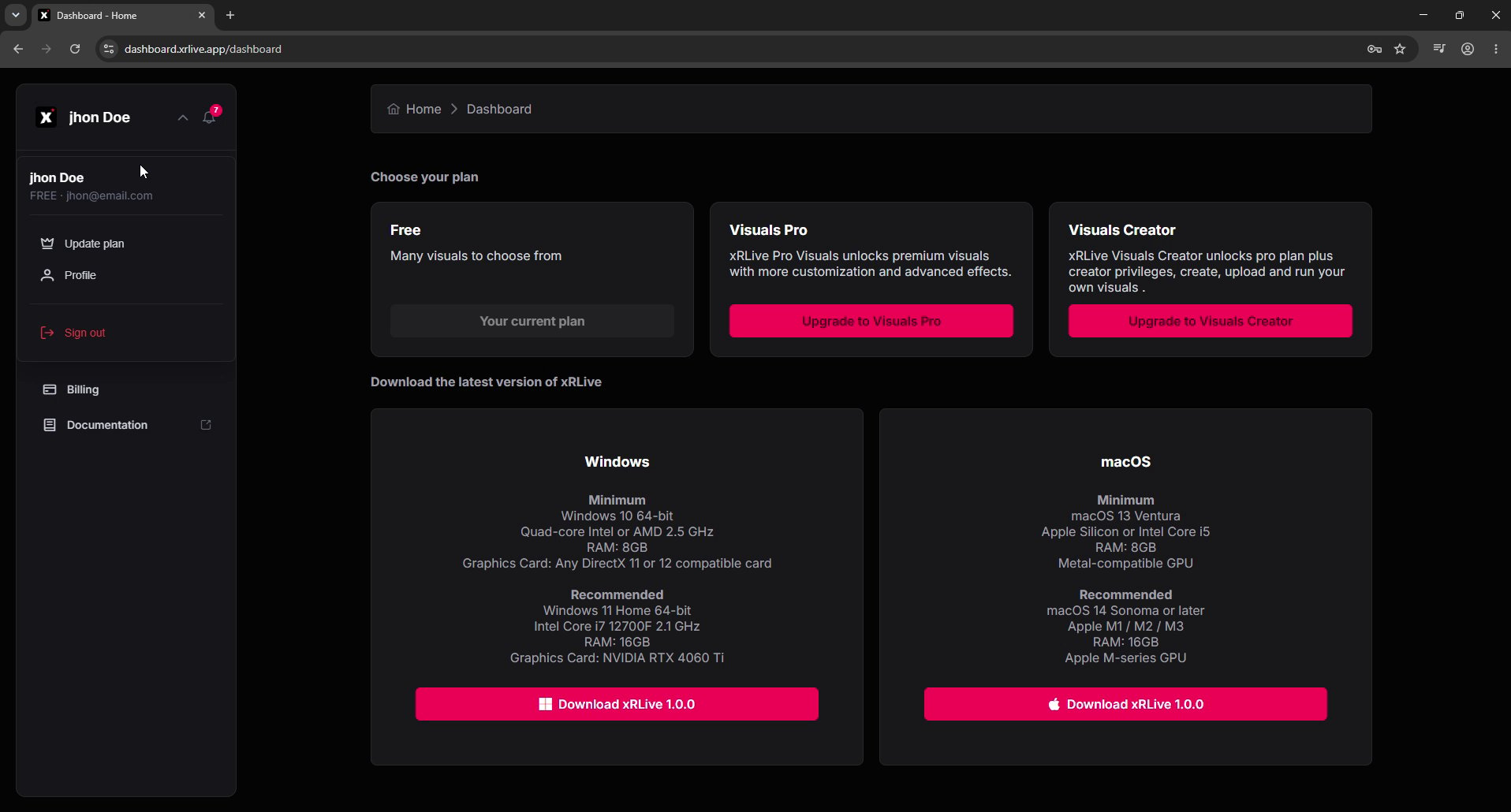
In the dashboard, click your **name** in the top-left corner to expand the account menu.
Select **Profile** from the menu.
## Opening your profile
In the dashboard, click your **name** in the top-left corner to expand the account menu.
Select **Profile** from the menu.
 You can also go straight to [dashboard.xrlive.app/dashboard/profile](https://dashboard.xrlive.app/dashboard/profile).
## Account
The **Account** section shows the details tied to your subscription:
* **Name** — the name on your account.
* **Email** — the address you sign in with and where xRLive sends account notifications.
## Change password
Use the **Change password** form to set a new password. You'll need your current password to confirm the change.
Type your existing password in the **Current password** field.
Type the new password in **New password**, then type it again in **Confirm new password** so they match.
Click **Update password**. A confirmation appears once your password has been changed successfully.
If you signed up with Google, you sign in through Google and won't manage a password here. See [Sign Up](/dashboard/signup).
You can also go straight to [dashboard.xrlive.app/dashboard/profile](https://dashboard.xrlive.app/dashboard/profile).
## Account
The **Account** section shows the details tied to your subscription:
* **Name** — the name on your account.
* **Email** — the address you sign in with and where xRLive sends account notifications.
## Change password
Use the **Change password** form to set a new password. You'll need your current password to confirm the change.
Type your existing password in the **Current password** field.
Type the new password in **New password**, then type it again in **Confirm new password** so they match.
Click **Update password**. A confirmation appears once your password has been changed successfully.
If you signed up with Google, you sign in through Google and won't manage a password here. See [Sign Up](/dashboard/signup).