> ## Documentation Index
> Fetch the complete documentation index at: https://xrlive.mintlify.site/llms.txt
> Use this file to discover all available pages before exploring further.
# My Library
> Access and manage all your purchased and owned visuals
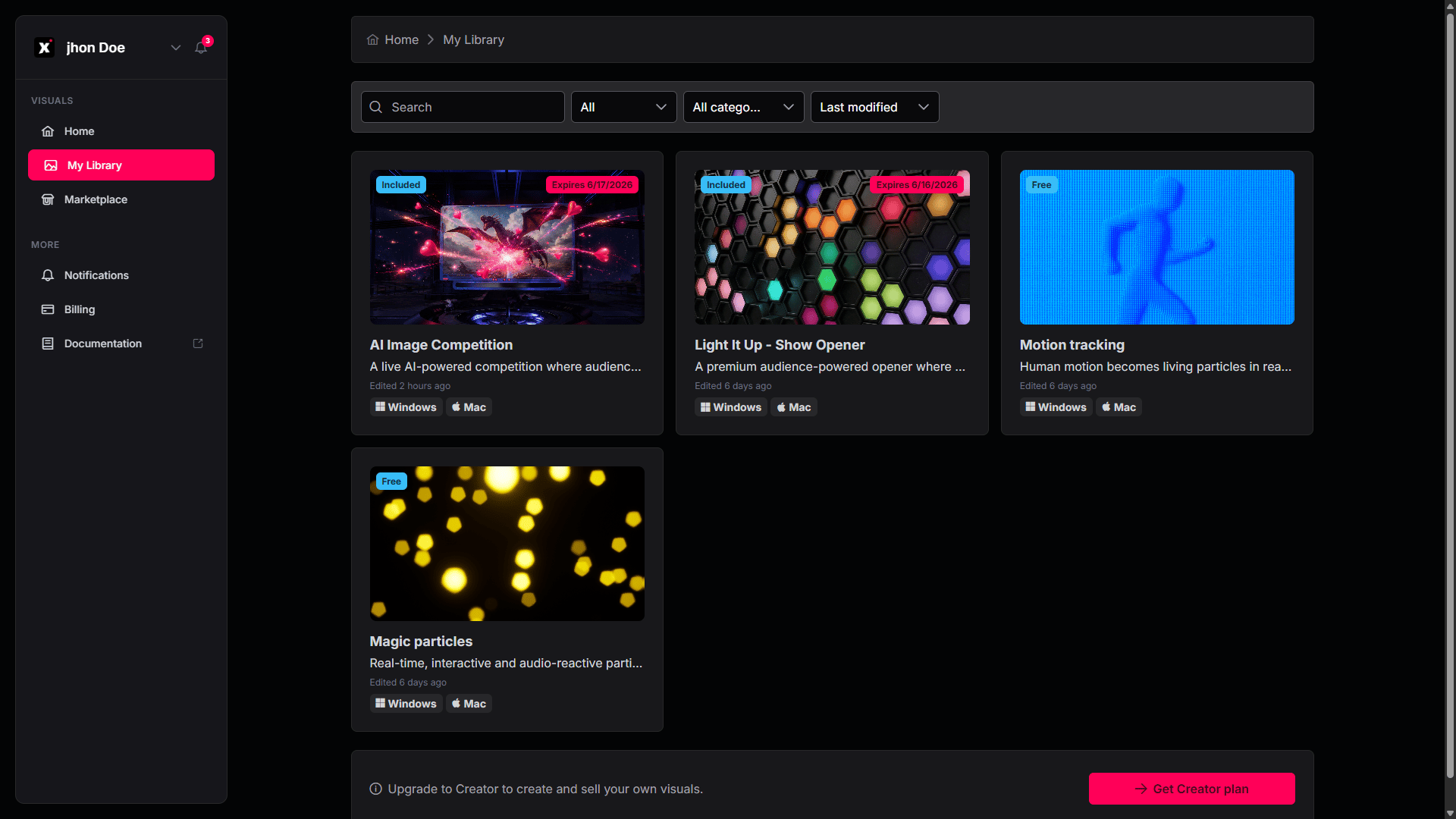
**My Library** is the dashboard page that gathers every visual you own — both the ones you've purchased and the free ones you've added. Open it from the **My Library** item in the sidebar, or go to [dashboard.xrlive.app/dashboard/my-visuals](https://dashboard.xrlive.app/dashboard/my-visuals).
 ## Your visuals
Each visual you own is shown as a **card** with its thumbnail, name, a short description, when it was last **edited**, and the **platforms** it runs on (**Windows** and/or **Mac**).
A badge on each card shows its status:
* **Purchased** — a visual you've bought.
* **Expires \[date]** — a time-limited purchase, with the date your access ends.
* **Free** — a free visual you've added to your library.
## Finding a visual
The controls at the top of the page help you locate a visual quickly:
* **Search** — click the search box and type a name or keyword; the grid filters as you type.
* **Category** — use the **All categories** dropdown to show only visuals in a chosen category.
* **Sort** — use the sort dropdown (for example, **Last modified**) to change the order of the grid.
## Using your visuals
There's nothing to download from this page — My Library is where you keep track of what you own. To run a visual, open the xRLive Launcher: your library there refreshes automatically and your visuals are ready to open.
→ See [Visual Library](/launcher/visuals/library) for browsing and opening visuals inside the Launcher.
## Become a creator
At the bottom of the page, the **Upgrade to Creator** banner lets you move to the Creator plan so you can create, upload, and sell your own visuals. Click **Get Creator plan** to upgrade.
Compare the Free, PRO, and CREATOR plans.
## Your visuals
Each visual you own is shown as a **card** with its thumbnail, name, a short description, when it was last **edited**, and the **platforms** it runs on (**Windows** and/or **Mac**).
A badge on each card shows its status:
* **Purchased** — a visual you've bought.
* **Expires \[date]** — a time-limited purchase, with the date your access ends.
* **Free** — a free visual you've added to your library.
## Finding a visual
The controls at the top of the page help you locate a visual quickly:
* **Search** — click the search box and type a name or keyword; the grid filters as you type.
* **Category** — use the **All categories** dropdown to show only visuals in a chosen category.
* **Sort** — use the sort dropdown (for example, **Last modified**) to change the order of the grid.
## Using your visuals
There's nothing to download from this page — My Library is where you keep track of what you own. To run a visual, open the xRLive Launcher: your library there refreshes automatically and your visuals are ready to open.
→ See [Visual Library](/launcher/visuals/library) for browsing and opening visuals inside the Launcher.
## Become a creator
At the bottom of the page, the **Upgrade to Creator** banner lets you move to the Creator plan so you can create, upload, and sell your own visuals. Click **Get Creator plan** to upgrade.
Compare the Free, PRO, and CREATOR plans.