> ## Documentation Index
> Fetch the complete documentation index at: https://xrlive.mintlify.site/llms.txt
> Use this file to discover all available pages before exploring further.
# Browse the Marketplace
> Find and preview visuals from the xRLive creator community
The Marketplace is the central catalog of `.xrlive` visuals available to download and run. It's accessible from the dashboard at [dashboard.xrlive.app/dashboard/marketplace](https://dashboard.xrlive.app/dashboard/marketplace).
 ## Browsing visuals
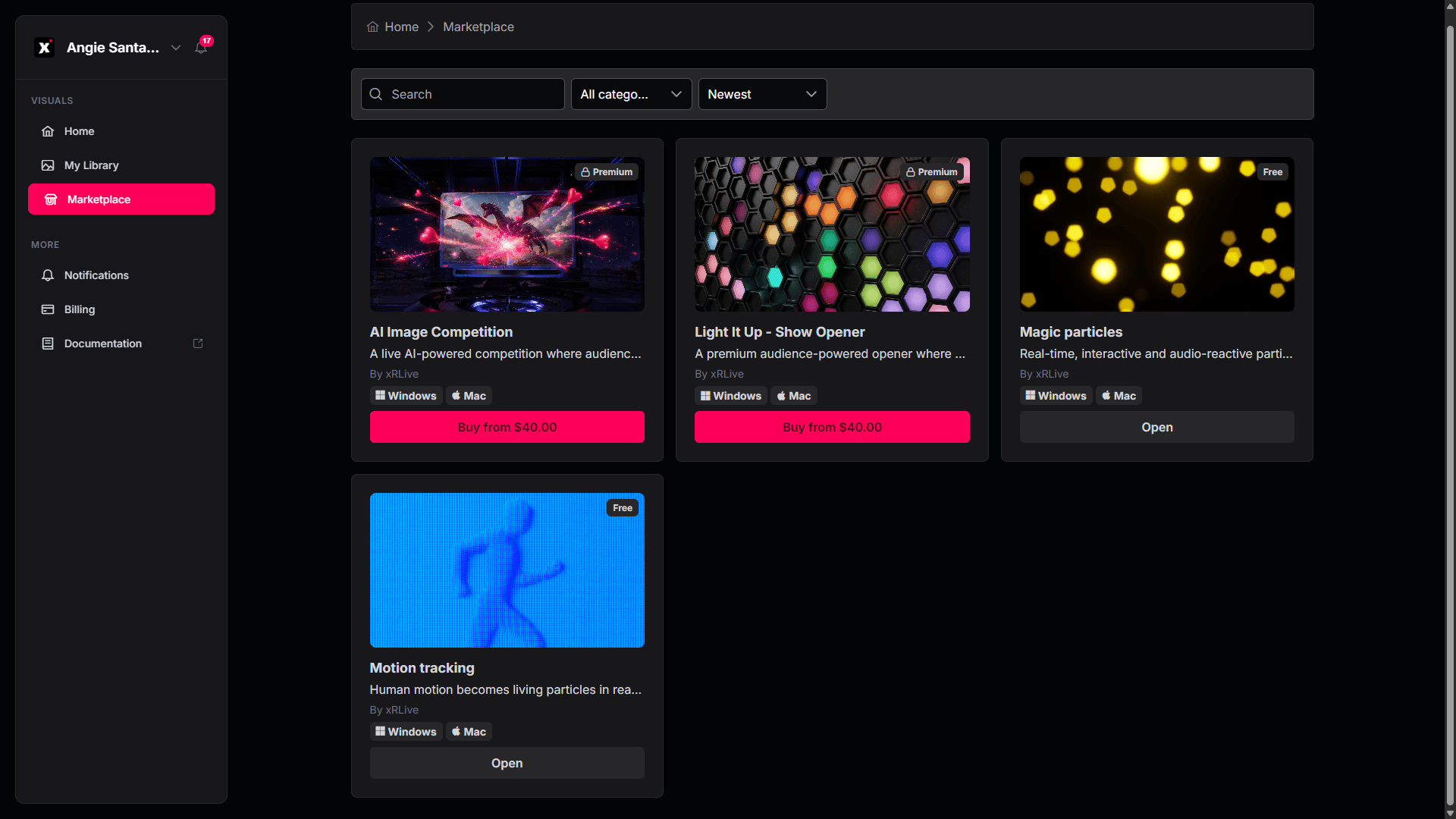
Visuals are shown as **cards**. Each card includes:
* A **thumbnail** with a badge marking it as **Premium** or **Free**.
* The **name** and a short **description**.
* The **creator** (e.g. *By xRLive*).
* **Platform** badges showing where it runs — **Windows** and/or **Mac**.
* An **action button**: **Open** for free visuals, or **Buy from \$\[price]** for premium ones.
## Finding a visual
The row of controls at the top of the page helps you find exactly what you're looking for. You can use them on their own or combine them.
* **Scroll the page** — to see everything, simply scroll up and down. All available visuals are listed as cards.
* **Search by name or keyword** — click the **Search** box and start typing. The list updates as you type to show only the visuals whose name or description matches your text.
* **Filter by category** — click the category dropdown (it reads **All categories** when nothing is selected) and choose a category, such as *Abstract* or *Experiences*. The page then shows only visuals in that category. Choose **All categories** again to clear the filter.
* **Change the order** — click the sort dropdown (for example, **Newest**) to reorder the list.
Searching and filtering work together. For example, you can pick a category first and then type in the search box to narrow the results even further.
## Previewing a visual
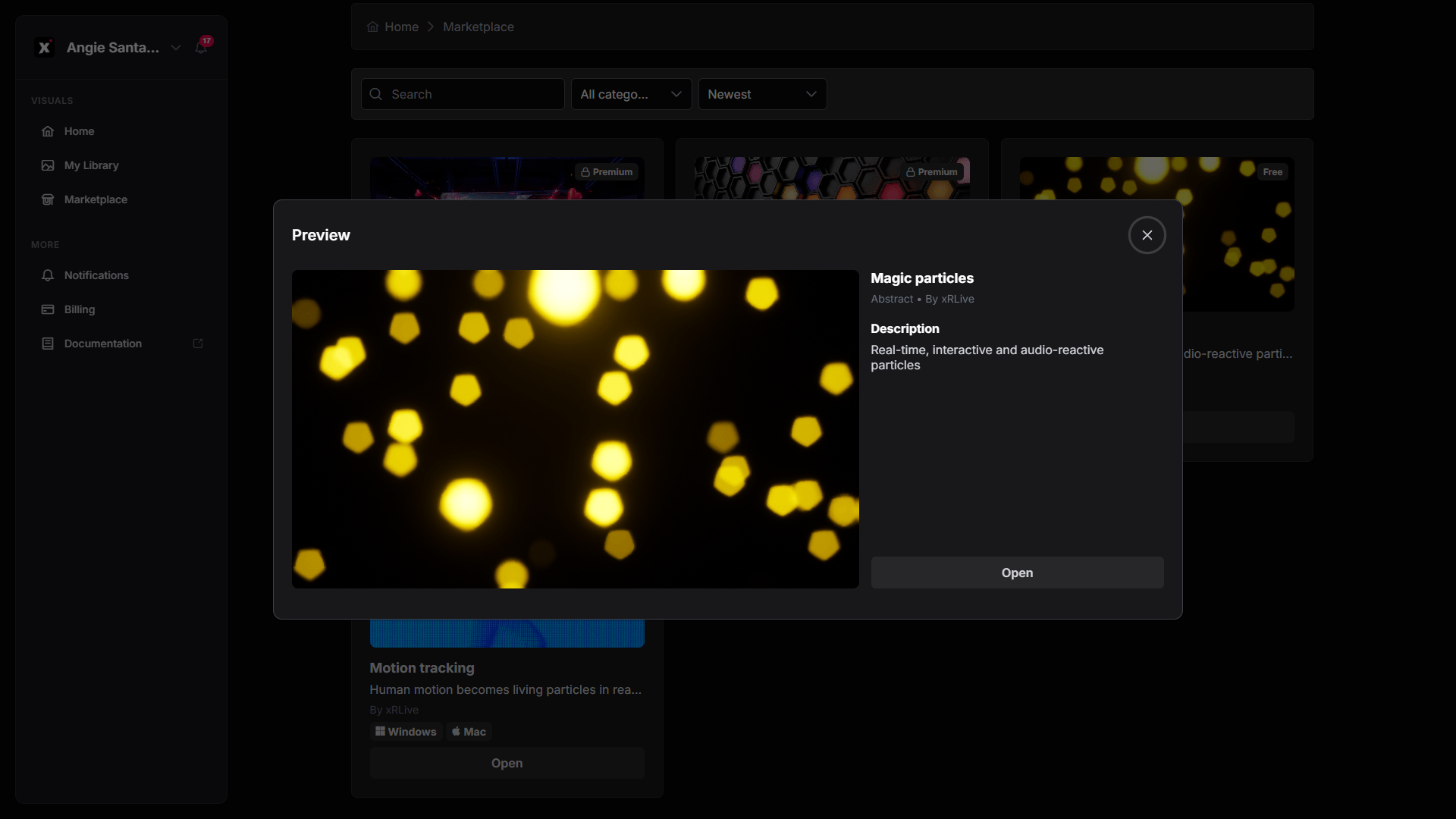
Click any card to open its **Preview**. The preview shows a video or image of the visual on the left, and on the right its **name**, **category · creator**, and a full **Description** from the creator.
## Free vs premium visuals
**Free visuals** carry a **Free** badge. Open the preview and click **Open** to add the visual to your library at no cost.
## Browsing visuals
Visuals are shown as **cards**. Each card includes:
* A **thumbnail** with a badge marking it as **Premium** or **Free**.
* The **name** and a short **description**.
* The **creator** (e.g. *By xRLive*).
* **Platform** badges showing where it runs — **Windows** and/or **Mac**.
* An **action button**: **Open** for free visuals, or **Buy from \$\[price]** for premium ones.
## Finding a visual
The row of controls at the top of the page helps you find exactly what you're looking for. You can use them on their own or combine them.
* **Scroll the page** — to see everything, simply scroll up and down. All available visuals are listed as cards.
* **Search by name or keyword** — click the **Search** box and start typing. The list updates as you type to show only the visuals whose name or description matches your text.
* **Filter by category** — click the category dropdown (it reads **All categories** when nothing is selected) and choose a category, such as *Abstract* or *Experiences*. The page then shows only visuals in that category. Choose **All categories** again to clear the filter.
* **Change the order** — click the sort dropdown (for example, **Newest**) to reorder the list.
Searching and filtering work together. For example, you can pick a category first and then type in the search box to narrow the results even further.
## Previewing a visual
Click any card to open its **Preview**. The preview shows a video or image of the visual on the left, and on the right its **name**, **category · creator**, and a full **Description** from the creator.
## Free vs premium visuals
**Free visuals** carry a **Free** badge. Open the preview and click **Open** to add the visual to your library at no cost.
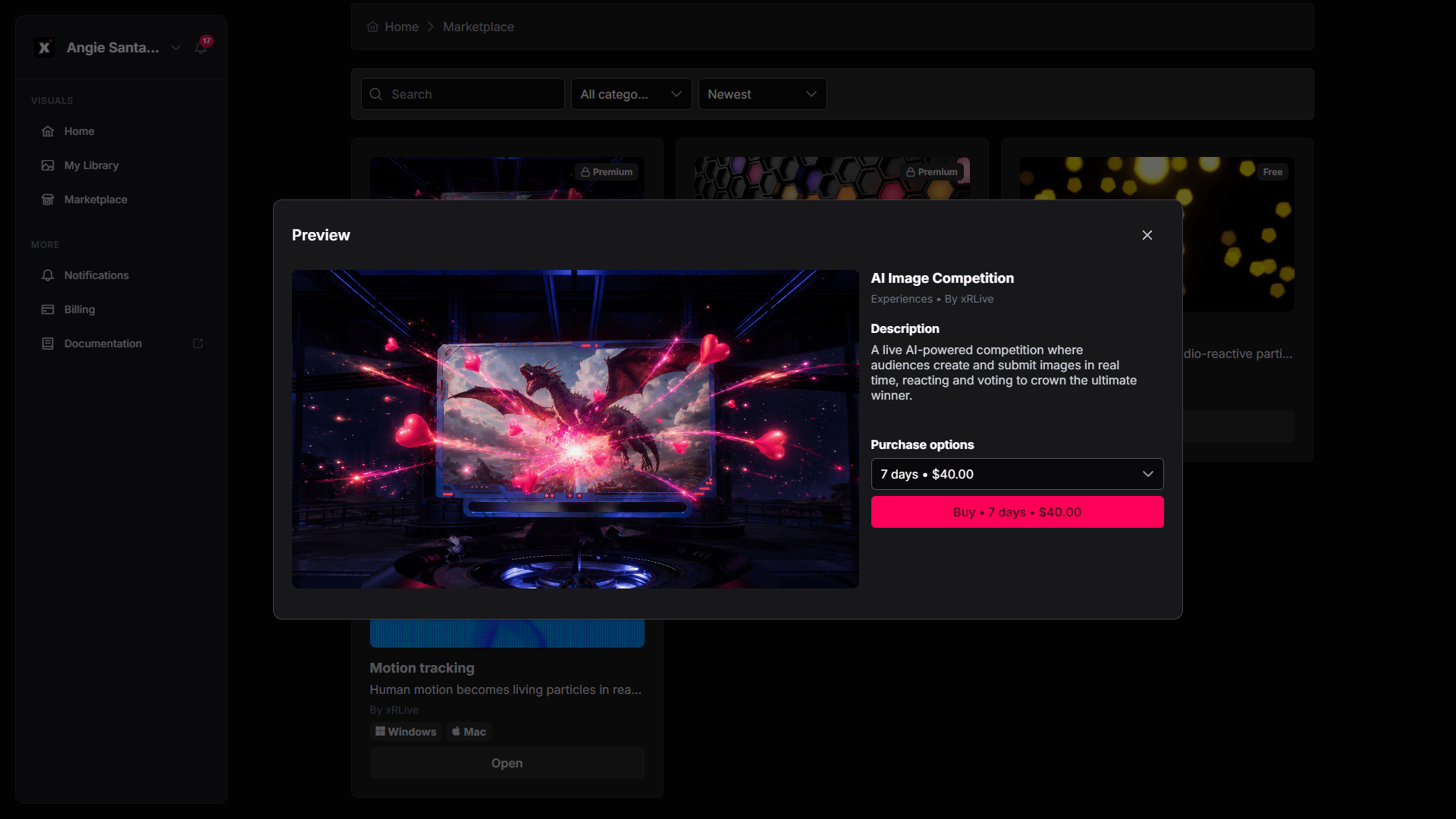
 **Premium visuals** carry a **Premium** badge and a \**Buy from $[price]** button. In the preview, a **Purchase options** dropdown lets you pick a plan — these can be time-limited (for example, *7 days · $40.00*). Select an option and click **Buy** to go through checkout.
 You need a **PRO** or **CREATOR** subscription to run premium visuals. The Marketplace lets anyone browse, but running visuals on stage requires a subscription.
## After getting a visual
Once a visual is in your library, open the xRLive Launcher — your [library](/dashboard/marketplace/my-library) refreshes automatically, and the new visual is ready to open.
Step-by-step walkthrough of the purchase flow.
You need a **PRO** or **CREATOR** subscription to run premium visuals. The Marketplace lets anyone browse, but running visuals on stage requires a subscription.
## After getting a visual
Once a visual is in your library, open the xRLive Launcher — your [library](/dashboard/marketplace/my-library) refreshes automatically, and the new visual is ready to open.
Step-by-step walkthrough of the purchase flow.