> ## Documentation Index
> Fetch the complete documentation index at: https://xrlive.mintlify.site/llms.txt
> Use this file to discover all available pages before exploring further.
# Manage Subscription
> Change your tier and manage billing in Stripe
Once you're on a paid plan, there are two places to manage it: the **Upgrade your plan** window to change tiers, and the **Stripe billing portal** for everything related to payment and billing.
## Upgrade to a higher tier
To move up a tier — for example, from **Visuals Pro** to **Visuals Creator** — open the **Upgrade your plan** window from [My Library](https://dashboard.xrlive.app/dashboard/my-visuals) and click **Upgrade to Visuals Creator**. The window marks the plan you're on as **Your current plan**.
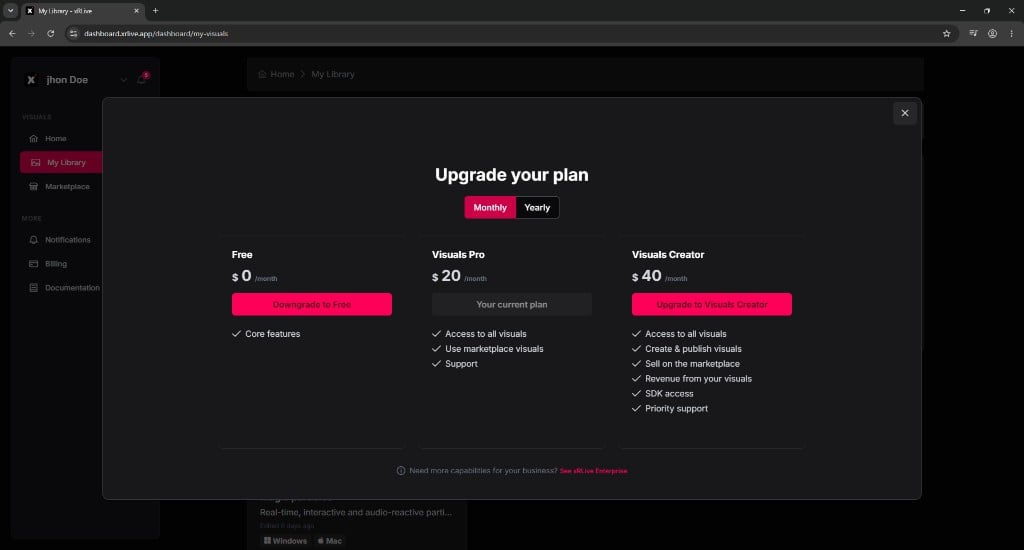 Use the **Monthly / Yearly** toggle before you confirm to pick the billing cycle that suits you.
## Manage billing in Stripe
Payments, cards, and billing details are handled by **Stripe**. To open the billing portal, go to **Billing** in the dashboard sidebar and click **Manage Subscription**.
Use the **Monthly / Yearly** toggle before you confirm to pick the billing cycle that suits you.
## Manage billing in Stripe
Payments, cards, and billing details are handled by **Stripe**. To open the billing portal, go to **Billing** in the dashboard sidebar and click **Manage Subscription**.
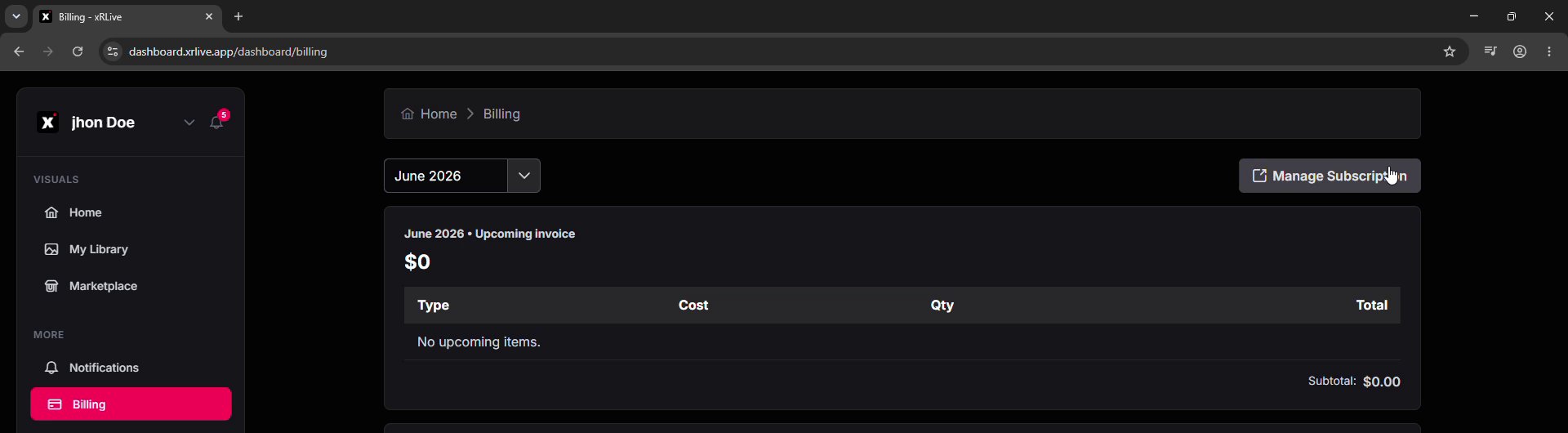 The Stripe billing portal brings everything together on one page.
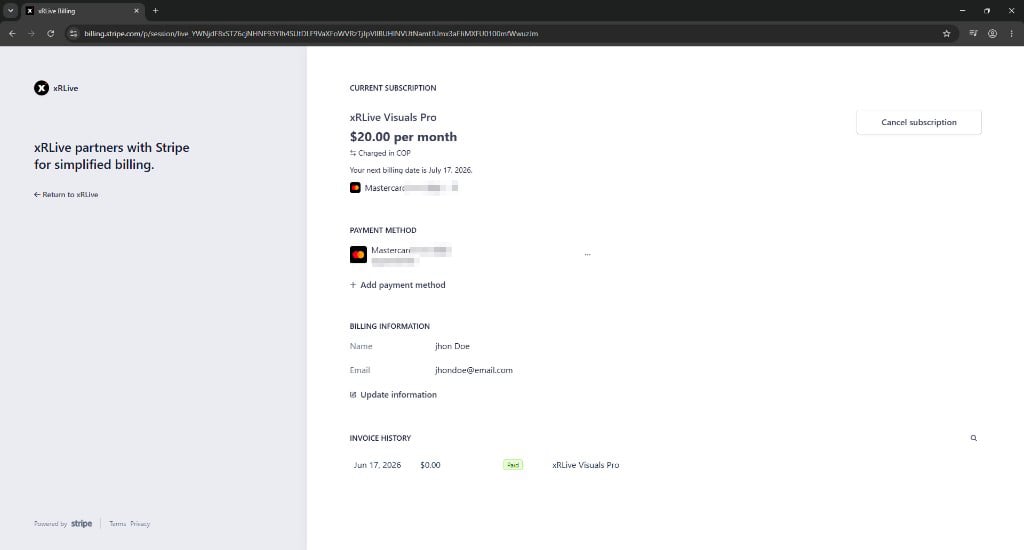 From here you can:
* **See your subscription** — the plan you're on and its price.
* **Check your next billing date** — the date of your next charge and the card it will be charged to, with an option to edit it.
* **Manage payment methods** — view the cards on file, add a new one, or edit an existing one.
* **Update billing information** — your name and email, with an **Update information** option.
* **Review invoice history** — your past invoices, also available in [Invoices](/dashboard/billing/invoices).
* **Cancel your subscription** — see [Cancel Subscription](/dashboard/billing/cancel-subscription) for the full process.
### Adding a payment method
Click **Add payment method** in the portal to add a new card. Enter the card details and click **Add** to save it.
From here you can:
* **See your subscription** — the plan you're on and its price.
* **Check your next billing date** — the date of your next charge and the card it will be charged to, with an option to edit it.
* **Manage payment methods** — view the cards on file, add a new one, or edit an existing one.
* **Update billing information** — your name and email, with an **Update information** option.
* **Review invoice history** — your past invoices, also available in [Invoices](/dashboard/billing/invoices).
* **Cancel your subscription** — see [Cancel Subscription](/dashboard/billing/cancel-subscription) for the full process.
### Adding a payment method
Click **Add payment method** in the portal to add a new card. Enter the card details and click **Add** to save it.
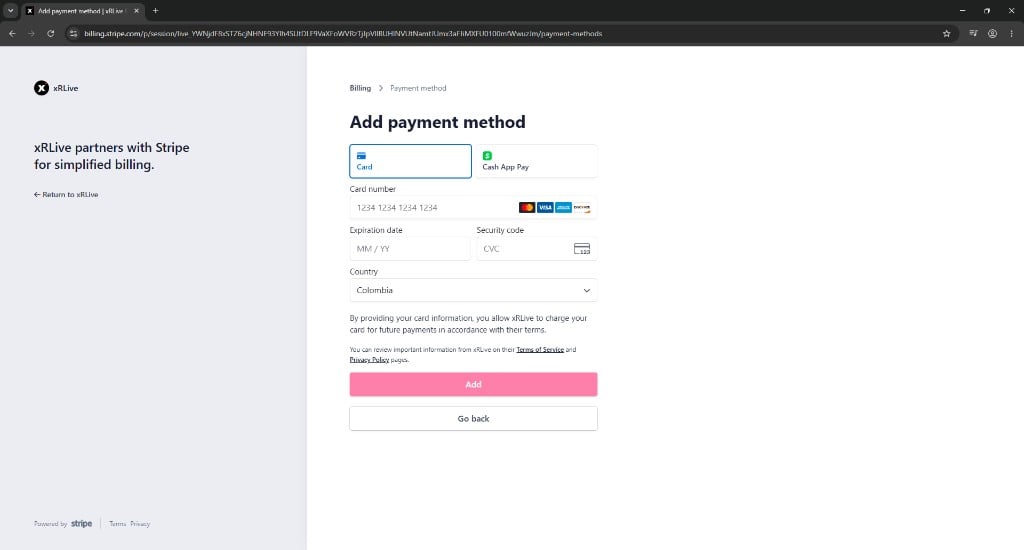 Your card information stays with Stripe and is never stored by xRLive.
## Where to go next
How to cancel and what happens to your plan afterward.
View and download your billing history.
Your card information stays with Stripe and is never stored by xRLive.
## Where to go next
How to cancel and what happens to your plan afterward.
View and download your billing history.